Token.io's Hosted Pages (HP) v1

Token.io offers an out-of-the-box user experience for TPPs to set up and initiate payments and share Account Information Services (AIS) data through Token.io's Hosted Pages (HP).

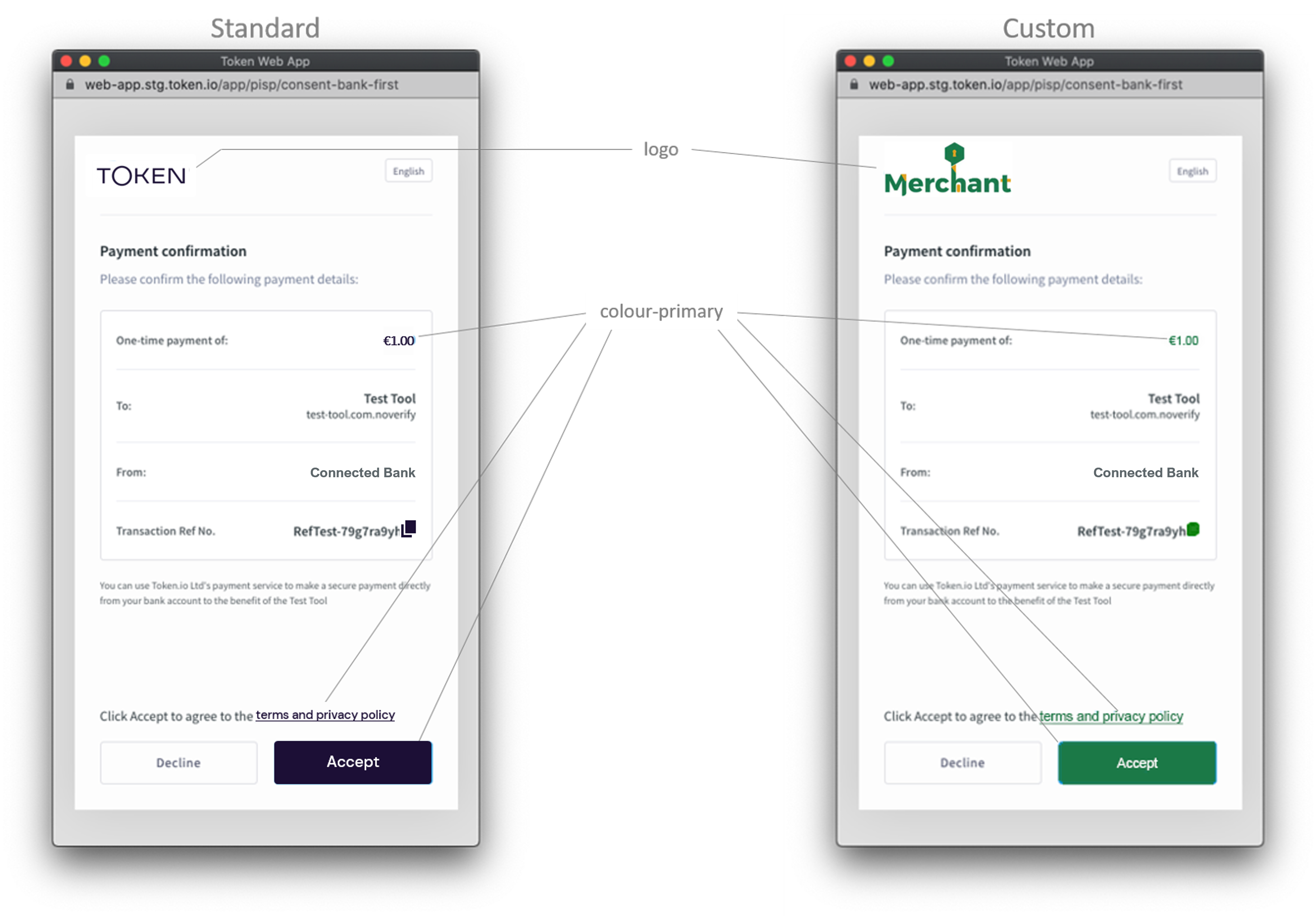
Token.io's HP provide a standard or customized user interface that bridges TPP service initiation with the bank's authentication and consent mechanisms. HP support the redirect, decoupled and embedded authentication models. You can also white-label/customize the HP with your logo and color scheme, provided you have the correct permissions.
Create a redirect URL

When using Token.io's HP you'll need to create a redirect URL to redirect the user to the HP. The following information provides instructions on how to do this for each payment type and for AIS.

Payments v1

Create the redirect URL by appending the request id in the response to the redirect base URL, then send it to the user to request explicit consent for the payment.

https://{{BASE_URL}}/app/request-token/{{Insert request-id here}}

// example =
https://web-app.sandbox.token.io/app/request-token/rq:3RKfCA7KQEEZERLoFsAt3MoAnoP5:5zKtXEAq

You can specify a particular language by passing its language code (lang=country-code) as a query parameter, appended to the URL above, which the user can override in the HP according to personal preference. Here's an example for passing the ISO 639-1 language code for German (de):

https://{{BASE_URL}}/app/request-token/rq:o9adbFqJXcaDGNDaykPvpSZFZDW:5zKtXEAq?lang=de

Variable Recurring Payments (VRP)

Create the redirect URL by appending the request id in the response to the redirect base URL, then send it to the user to request explicit consent for the payment.

https://{{base-url}}/app/initiation?vrp-consent-id={vrp-consent-id}

// example = https://web-app.sandbox.token.io/app/initiation?vrp-consent-id=vc:G9zUH8iKcL6G5m2H37YupKjE2HX:2gFUX1NDxaJ

Specify the country for the payment. Currently VRP is only supported in the UK. The user can either choose the country in the HP, or you can pass the ISO 3166 country code (e.g., country=gb) as a query parameter appended to the URL :

https://web-app.sandbox.token.io/app/initiation?vrp-consent-id=vc:G9zUH8iKcL6G5m2H37YupKjE2HX:2gFUX1NDxaJ?country=gb

You can specify a particular language by passing its ISO 639-1 language code (e.g., lang=de) as a query parameter, appended to the URL above, which the user can override in the HP according to personal preference:

https://web-app.sandbox.token.io/app/initiation?vrp-consent-id=vc:G9zUH8iKcL6G5m2H37YupKjE2HX:2gFUX1NDxaJ?country=gb&lang=de

AIS

Create the redirect URL by appending the request id in the response to the redirect base URL, then send it to the user to request explicit consent for the AIS request.

https://{{BASE_URL}}/app/request-token/{{Insert request-id here}}

// example = https://web-app.sandbox.token.io/app/request-token/rq:3RKfCA7KQEEZERLoFsAt3MoAnoP5:5zKtXEAq

The user can either choose the country in the HP, or you can specify a particular country by passing the ISO 3166 country code (e.g., country=gb) as a query parameter appended to the URL :

https://web-app.sandbox.token.io/app/request-token/rq:3RKfCA7KQEEZERLoFsAt3MoAnoP5:5zKtXEAq?country=gb

You can also specify a particular language by passing its ISO 639-1 language code (e.g., lang=de) as a query parameter, appended to the URL, which the user can override in the HP according to personal preference:

https:///web-app.sandbox.token.io/app/request-token/rq:o9adbFqJXcaDGNDaykPvpSZFZDW:5zKtXEAq?country=gb&lang=de

Create custom Hosted Pages

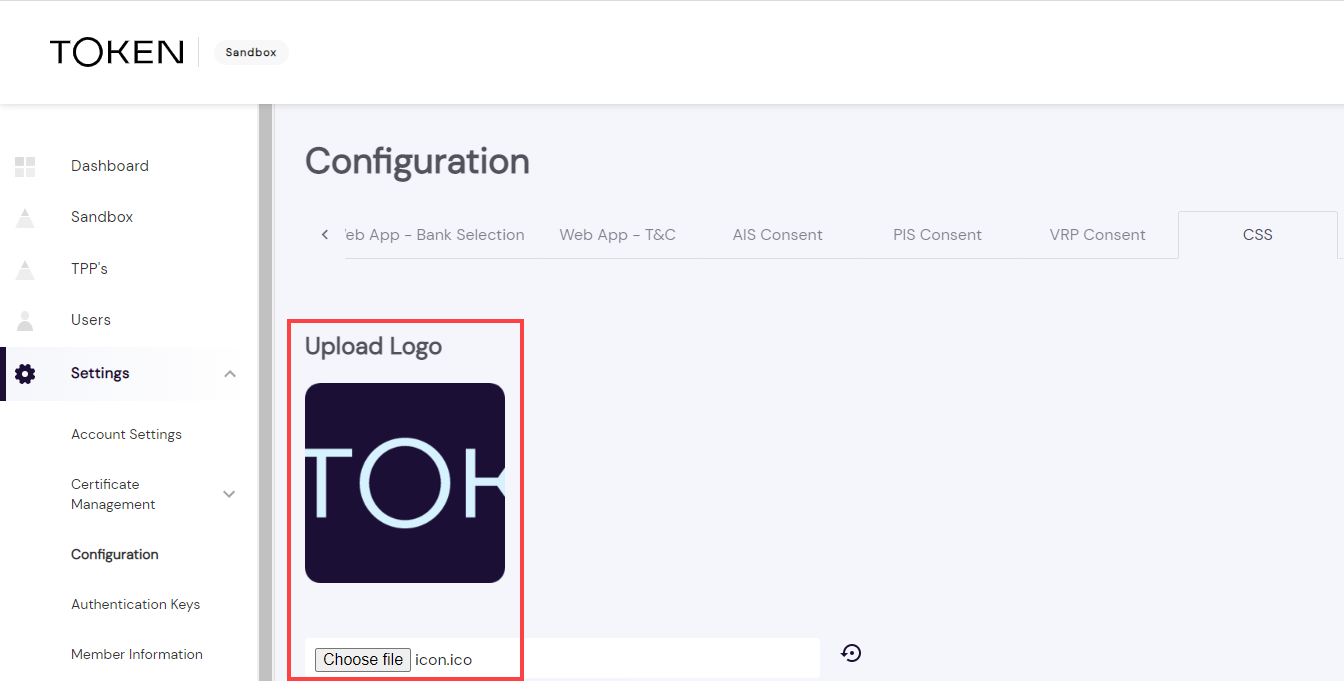
In the Dashboard, go to Settings > Configuration > Web App V1: CSS to add/change your customization settings.

Under Settings you can change the following elements in Token.io's HP:

TPP logo

Configures the TPP logo for the HP.

Click the Choose file button, and select a file from the File explorer.

The selected image:

  • can have a can have a maximum size of 250 px (width) by 23 px (height); 220 x 20 px is commonly used.

  • will appear in the HP as the TPP’s logo unless Product Name has been set under the Web App - General tab.

  • can be tagged as {TPP_LOGO} throughout other HP configuration fields in the Dashboard.
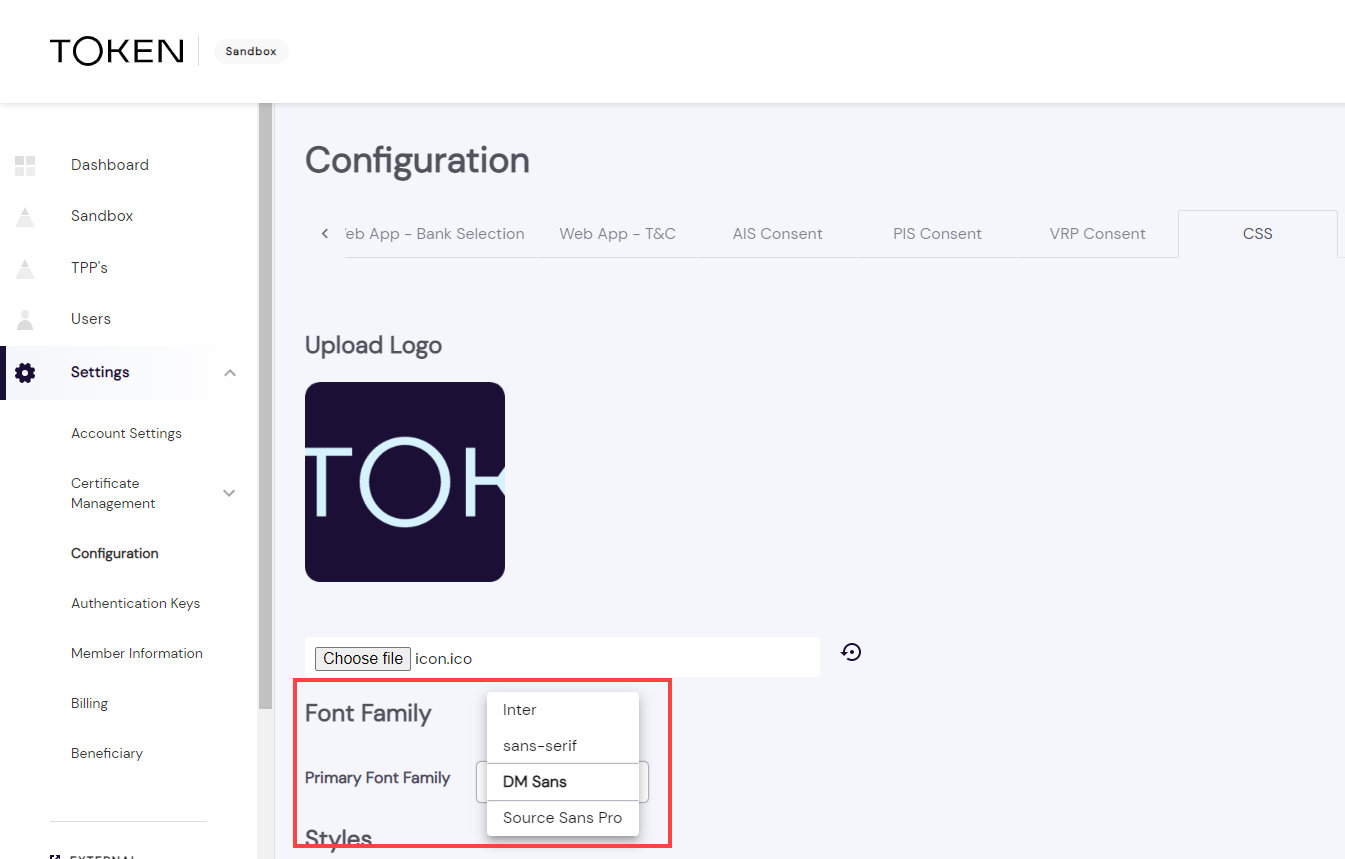
Font family

Configures the global font family for the HP.

Select the font family among the listed values in the Font Family dropdown.
Styles

Configures the text and button styles for the HP.
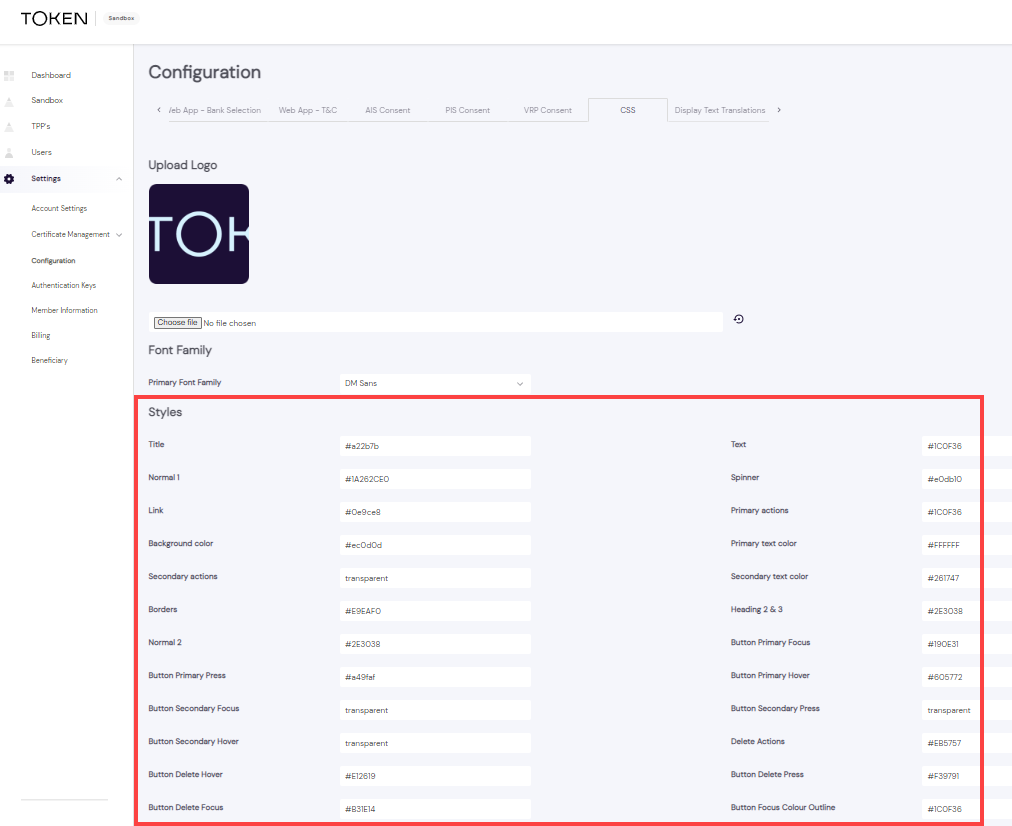
The following styles can be configured.

Styles configuration for Hosted Pages v1

Style

Configuration

Title

A color configuration for titles displayed in the global font family.


Text

A color configuration for special text and links displayed in the global font family.


Normal 1

A color configuration for default text on the HP consent page.

Spinner

A color configuration used for the spinners in the HP.

Link

A text color configuration used for links in the HP.

Primary actions

A color configuration used for primary actions such as hover on a list item and the color of an Accept button.

Background color

A color configuration used as a background color for lists in the HP.

Primary text color

A text color configuration used for the primary text for all primary actions in the HP.

Secondary Actions

A color configuration used for secondary actions.


Secondary text color

A text color configuration which is used for secondary text, for example, the label of a secondary button.

Borders

A color configuration for borders in the HP.

Heading 2 & 3

A text color configuration used for sub title text in the HP.


Normal 2

A text color configuration which is used for consent texts.


Button Primary Focus

A color configuration which only appears in the background of a primary button when the user tries to focus on it in the HP.

Button Primary Press

A color configuration which will only appear in the background of a primary button when the user tries to click it in the HP.

Button Primary Hover

A color configuration which will only appear in the background of a primary button when the user tries to hover over it in the HP.

Button Secondary Focus

A color configuration which only appears in the background of a secondary button when the user tries to focus on it in the HP.

Button Secondary Press

A color configuration which will only appear in the background of a secondary button when the user tries to click it in the HP.

Button Secondary Hover

A color configuration which will only appear in the background of a secondary button when the user tries to hover over it in the HP.

Delete Actions

A color configuration for delete actions in the HP.

Button Delete Hover

A color configuration which will only appear in the background of an error button when the user tries to hover over it in the HP.


Button Delete Press

A color configuration which only appears in the background of an error button when the user tries to click it in the HP.

Button Delete Focus

A color configuration which only appears in the background of an error button when the user tries to focus on it in the HP.

Button Focus Color Outline

A color configuration used to configure the focus outline color for actionable items in the HP.


Font weights

Configures the weight of the fonts for text in the HP.
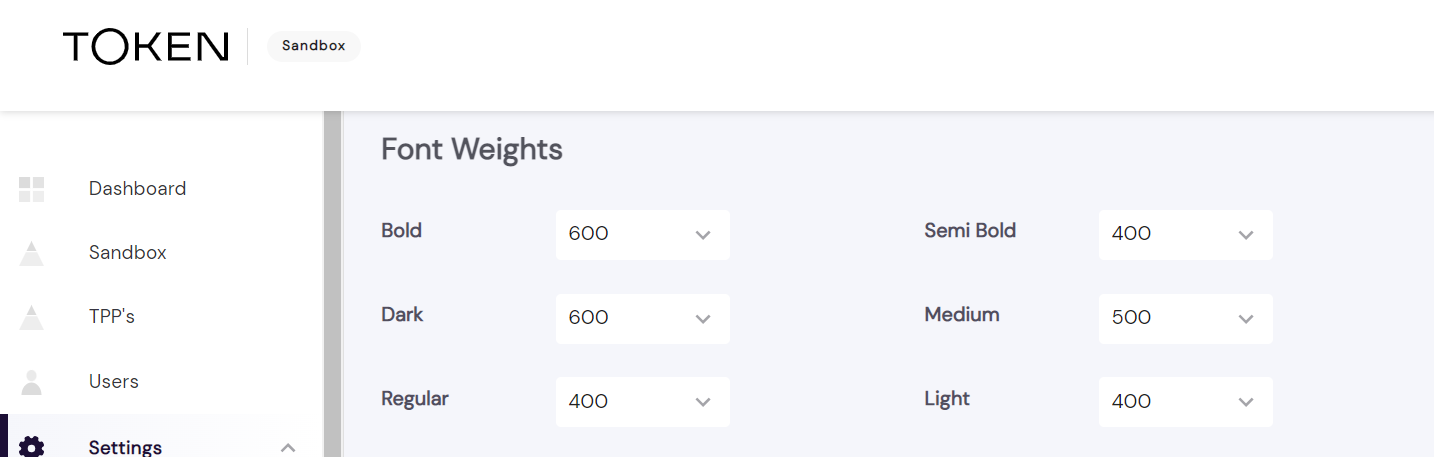
The following font weights can be configured.

Font weight configuration for Hosted Pages v1
Font weight Configuration
Bold

A font weight configuration generally used for Product Name and Title texts.


Semi Bold

A font weight configuration generally used for sub-title texts.


Dark

A font weight configuration used for consent details in the HP.

Medium

A font weight configuration used for consent data titles in the HP.

Regular

A font weight configuration used on list items, recent banks text, etc .


Light

A font weight configuration used in consent texts in the HP.

Font sizes

Configures the size of the fonts for text in the HP.
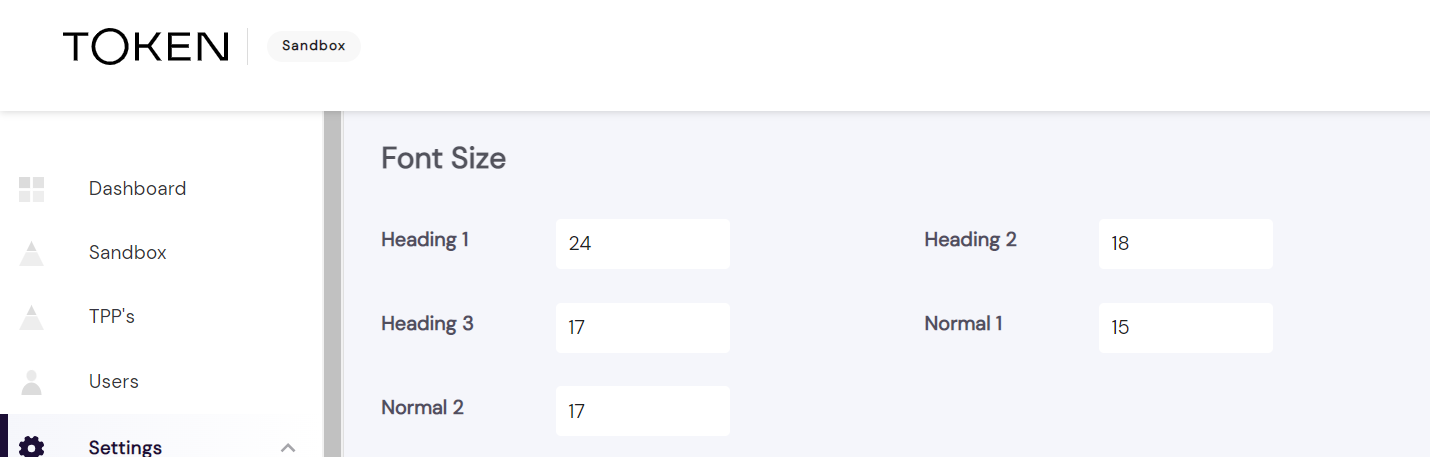
Font sizes configuration for Hosted Pages v1
Font weight Configuration
Heading 1

This size is used in Product Name texts as well as in the titles of HP.


Heading 2

This size is used in text inputs like IBAN and for selected items from lists.


Heading 3

This font size is used in sub titles and for consent details.


Normal 1

This font size is mainly used in consent-data-titles.


Normal 2

This font size is used in consent texts and on back button texts in the HP.


Hosted Pages flow

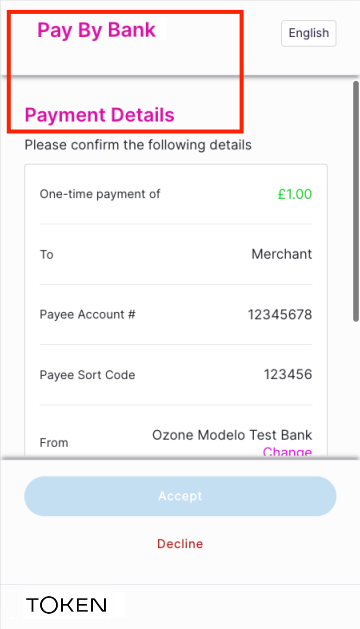
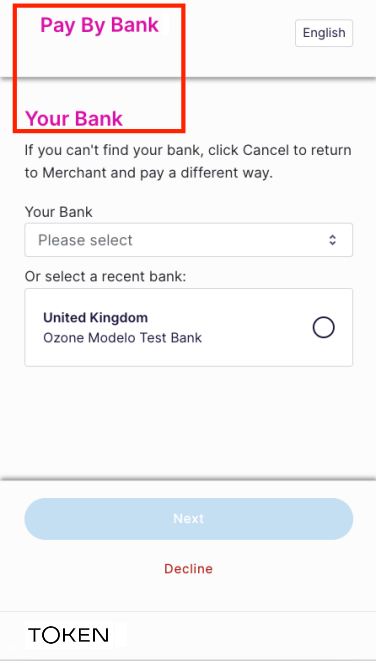
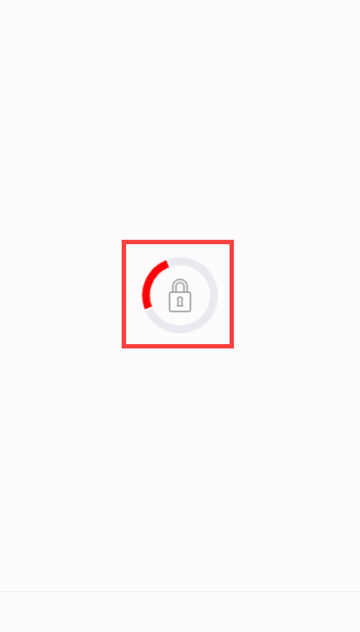
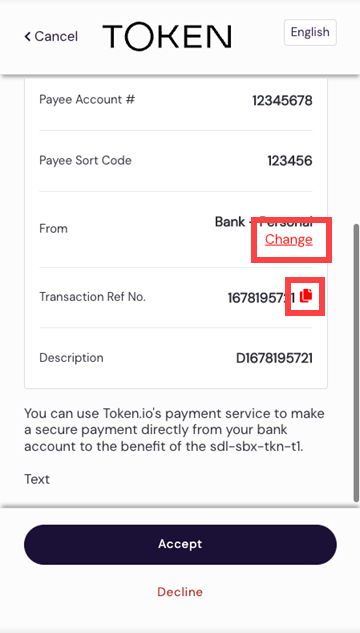
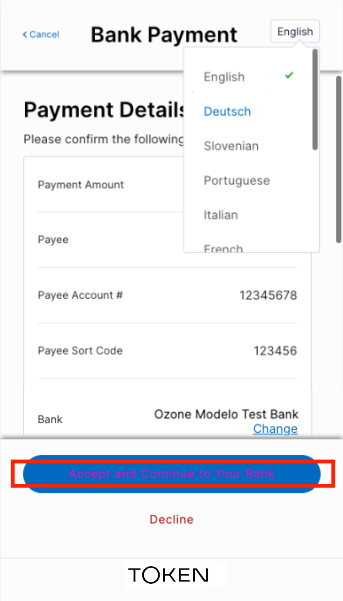
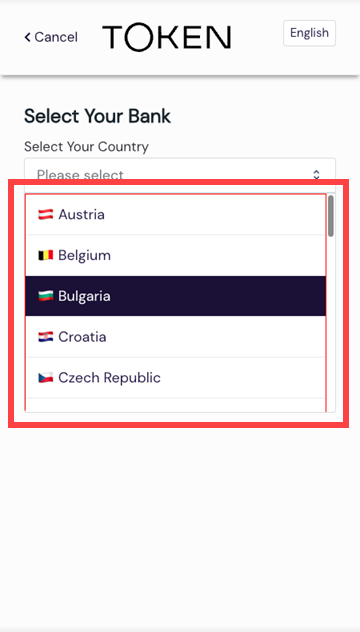
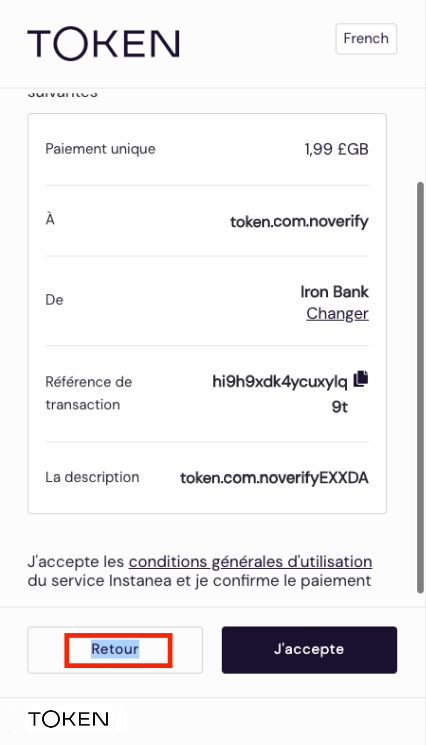
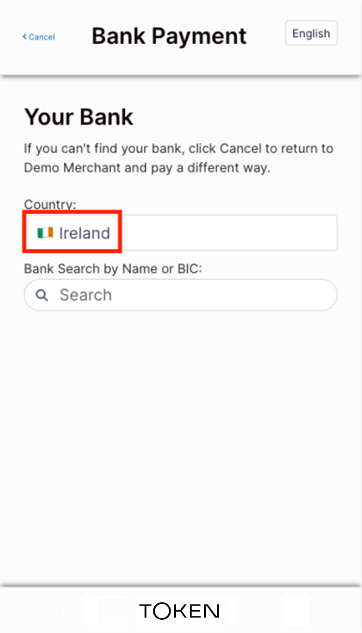
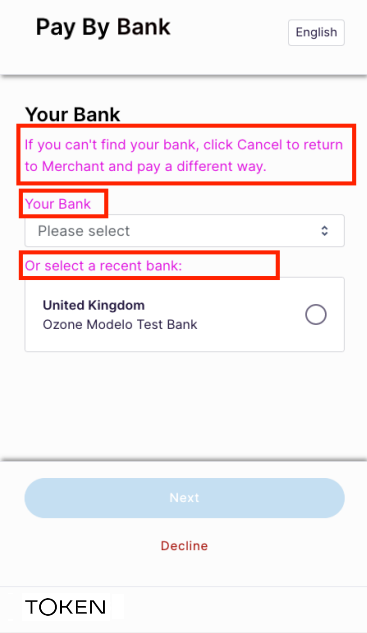
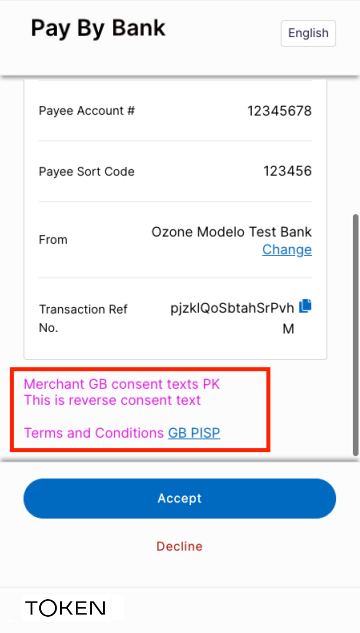
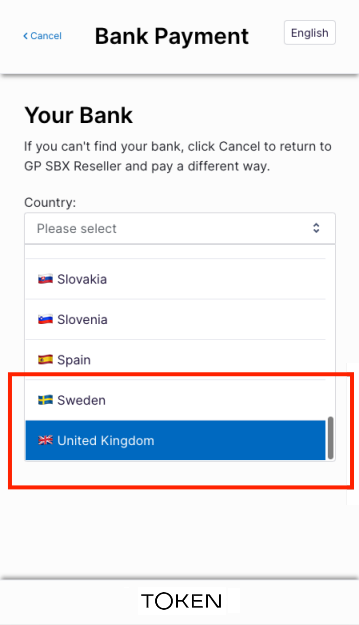
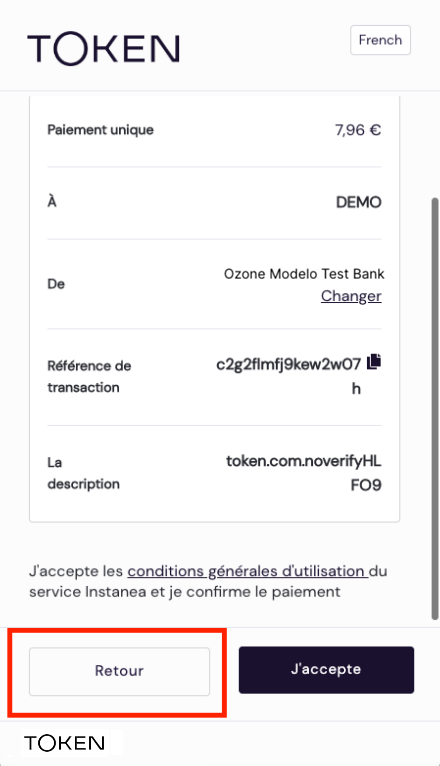
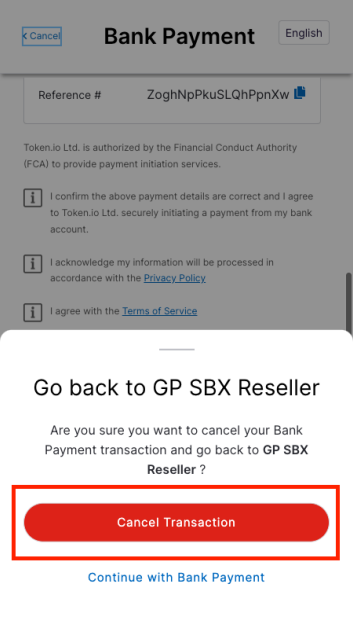
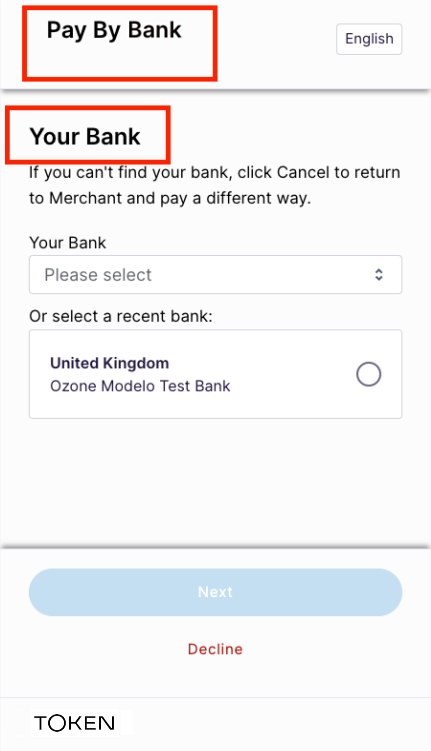
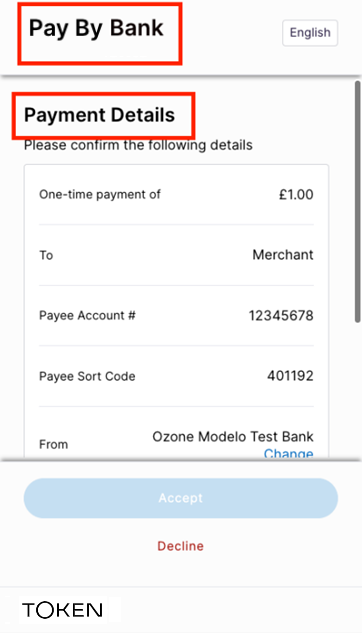
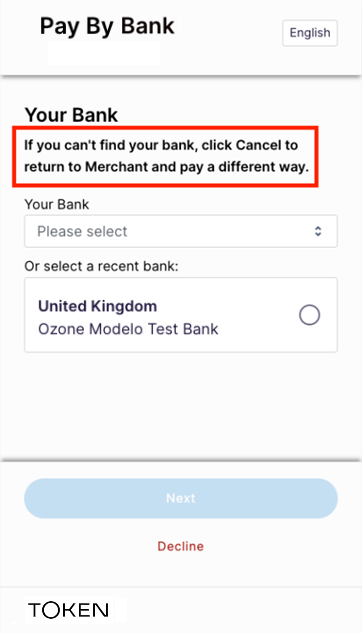
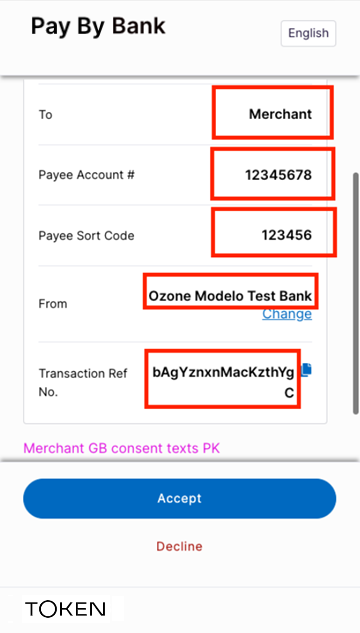
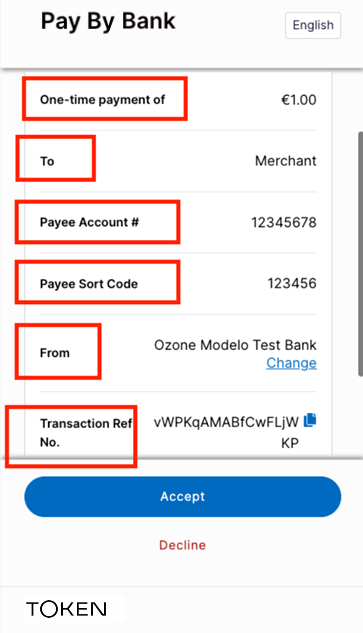
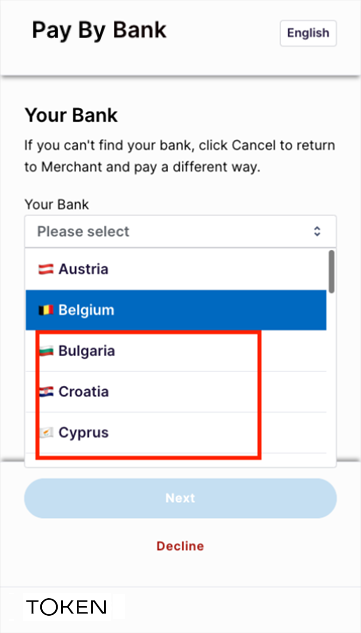
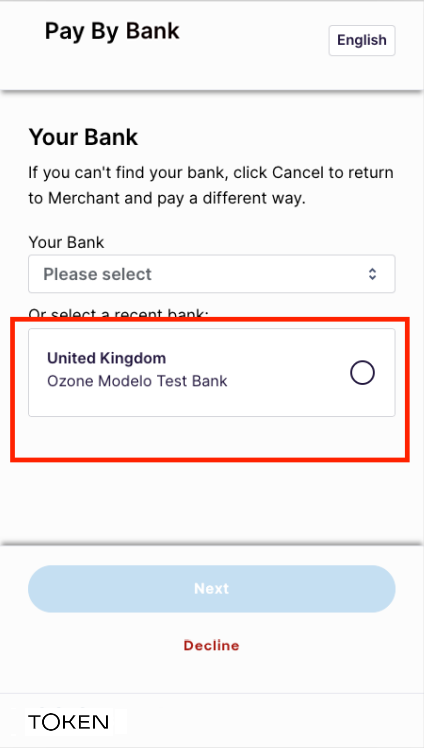
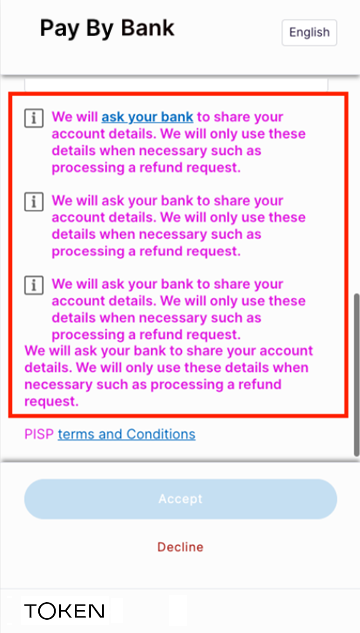
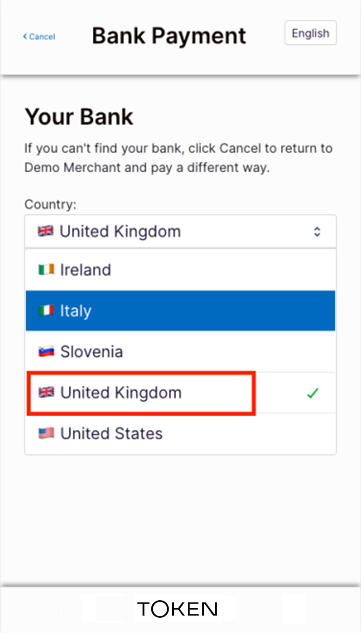
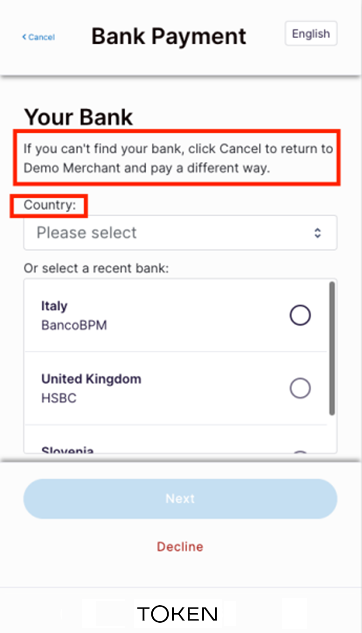
Token.io's HP (click to enlarge) guide the user through request initiation to consent and authentication with the bank.
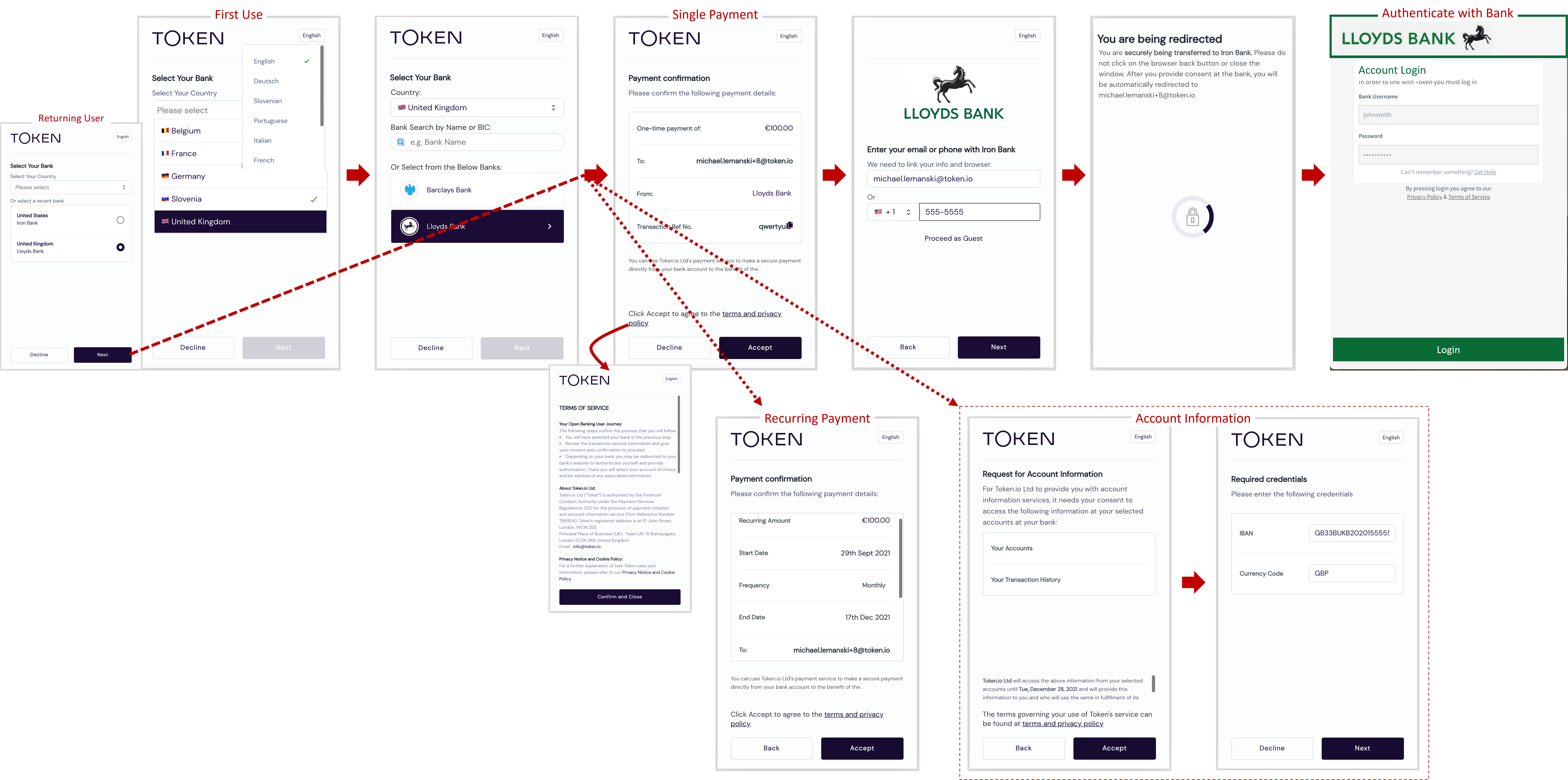
As a TPP you can't change the HP flow, but you can customize the UI with your own logo and color scheme.

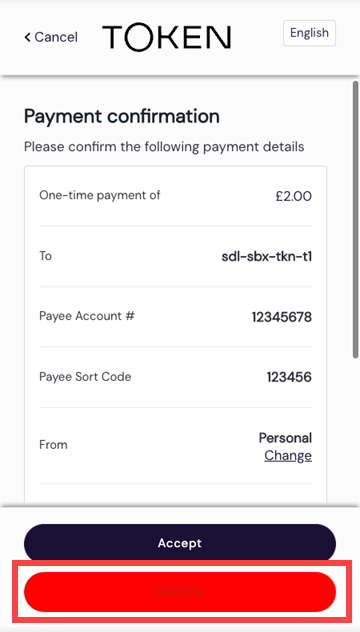
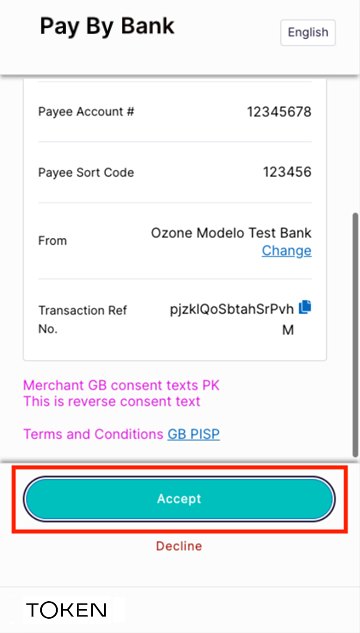
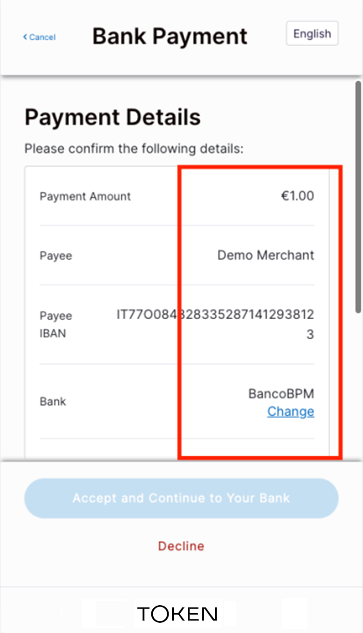
The Hosted Pages' Payment Confirmation page is displayed upon consent authorization.

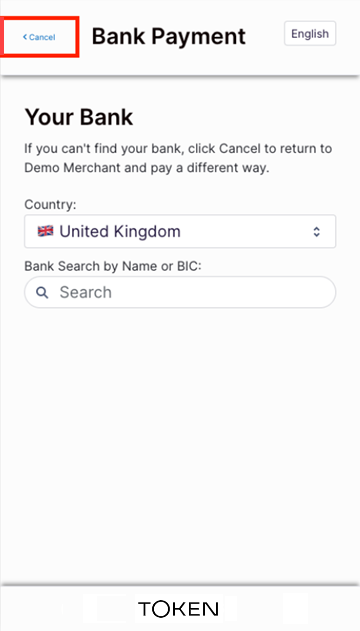
Search for banks by name or BIC

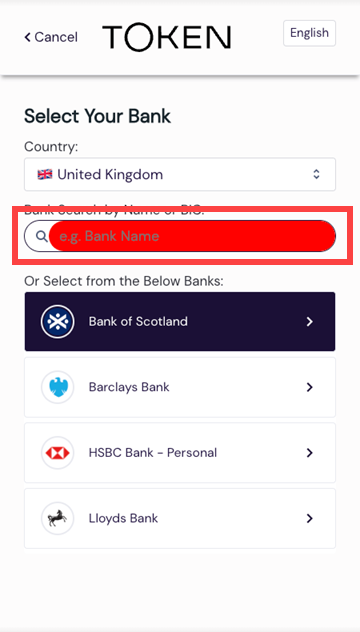
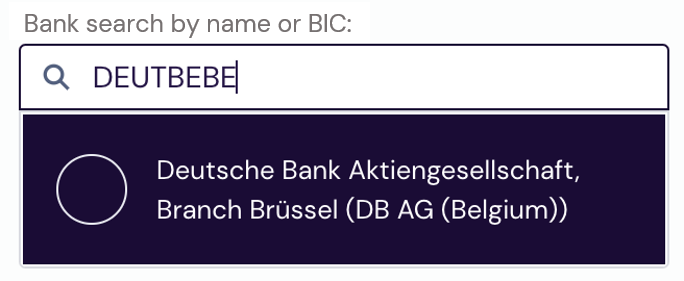
Users can search the list of banks by entering a full or partial bank name or BIC. If a full BIC or bank name is provided and a match is found, a single result is displayed.
When multiple matches are found for a partial string, all matching results are listed for user selection.
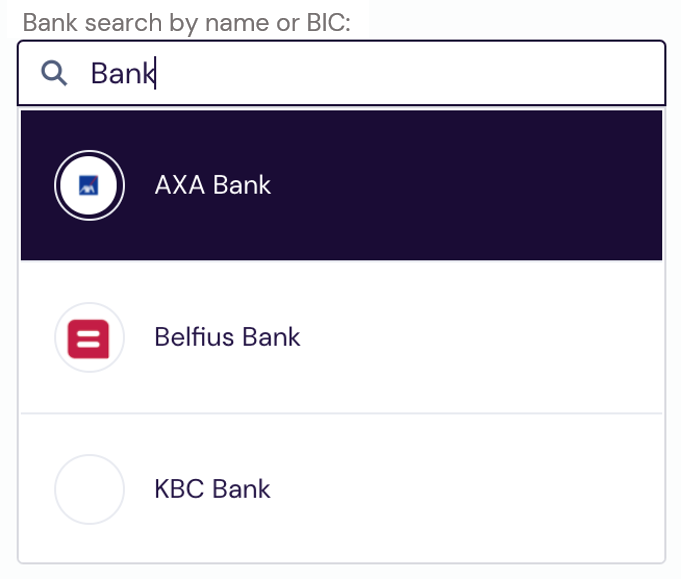
Remember, prior to customer redirect to the HP, you can filter the search list with a GET /banks call.

See Bank Selection (v1).

Country selection

The following settings determine which countries the user can see, or select from, in Hosted Pages v1.

  • Bank selection in the dashboard - This limits the banks shown in the Hosted Pages and can be as granular as including or excluding specific banks, or controlling the countries that can be accessed.
    See WebApp - Bank selection for more details.

  • Countries array in the API- This limits the selectable countries in the Hosted Pages.
    See the countries array in the API reference for more details.

  • Country query parameter - preselects the country but allows the end user to switch countries, within the limits defined by the bank selection in the dashboard and the countries array in the API.
    See Localization parameters for more details.

Customer cancellation during bank selection

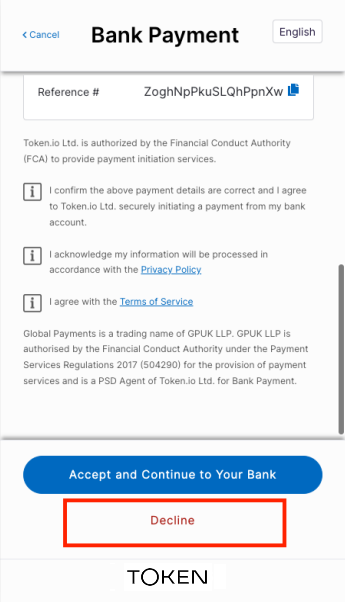
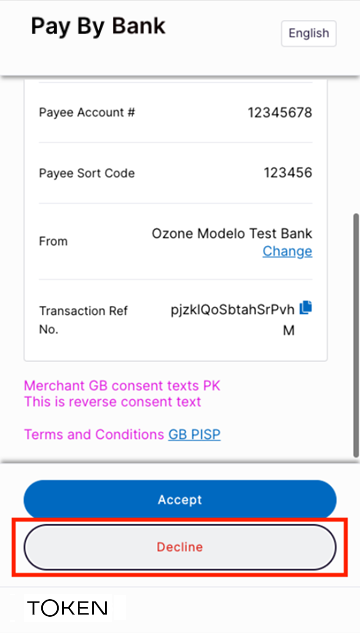
A user choosing not to proceed with user consent during bank selection can click/tap Decline.
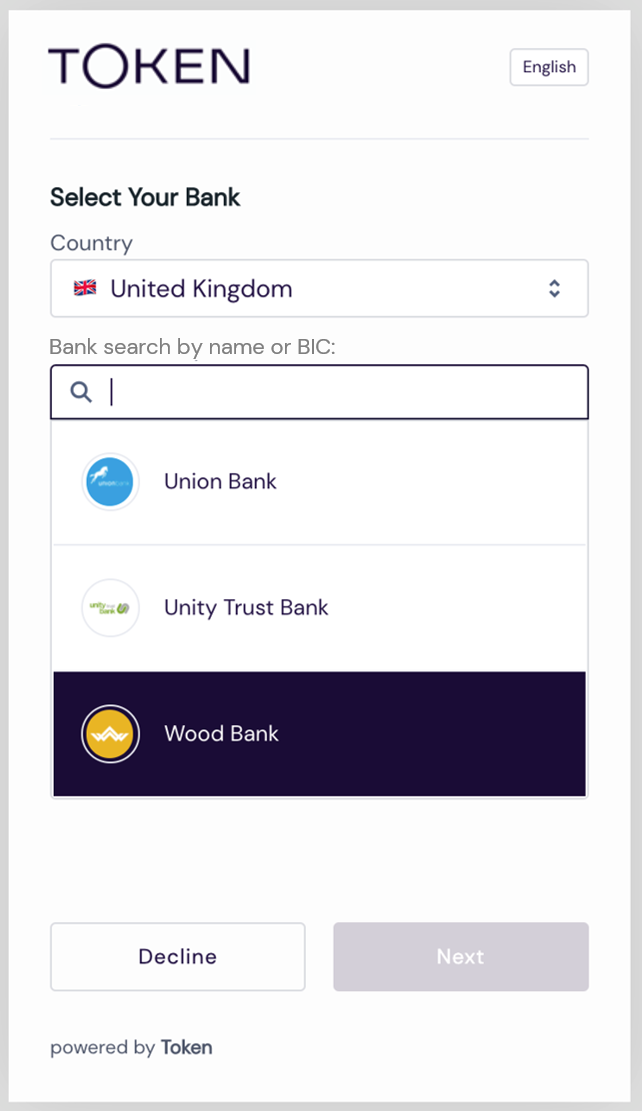
This returns the user to where the redirect originated in the TPP's UI.

Change the bank before confirming payment details

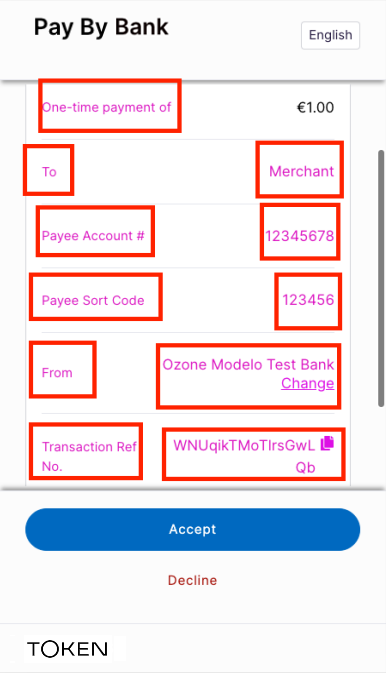
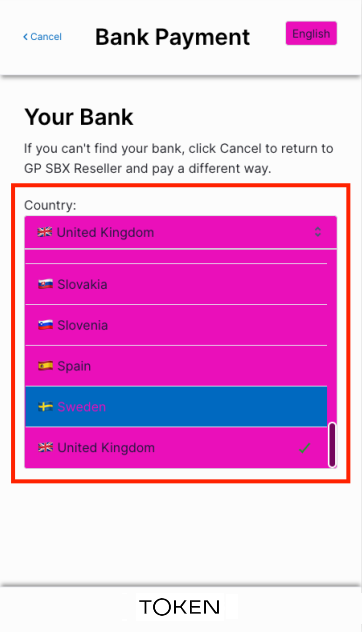
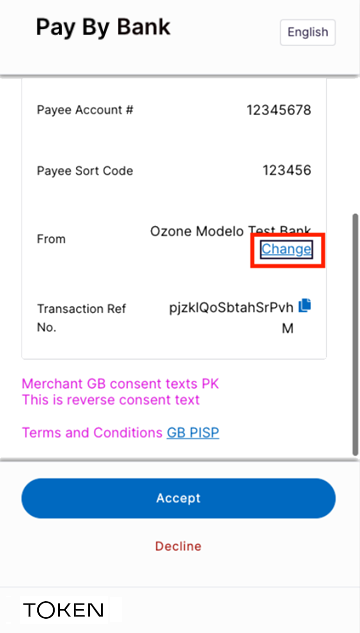
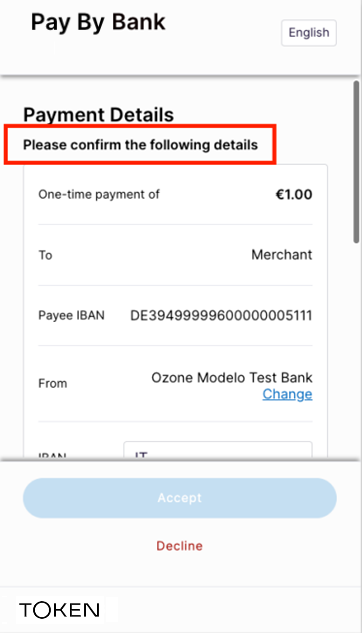
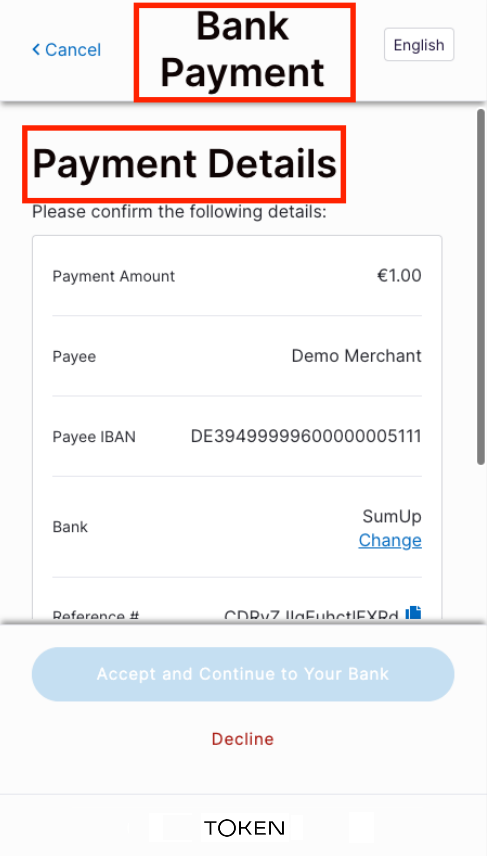
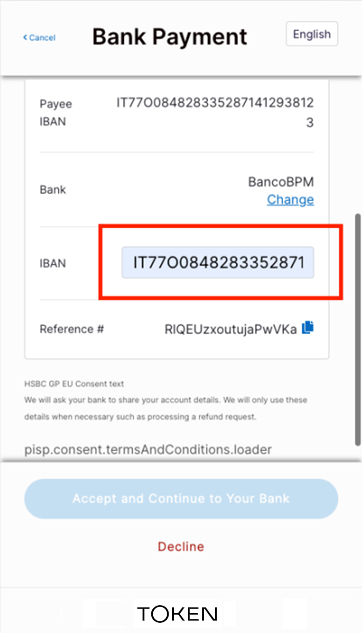
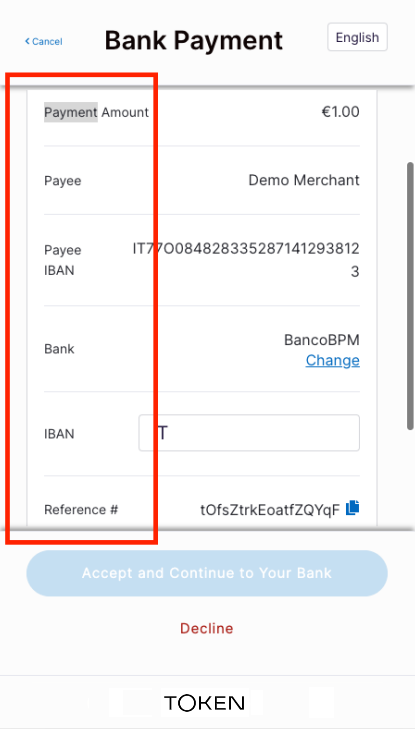
Prior to confirming payment for a redirect to the bank for consent authorization, users can change the selected bank, either by clicking Change on the Payment confirmation screen or by entering a full or partial IBAN search string.
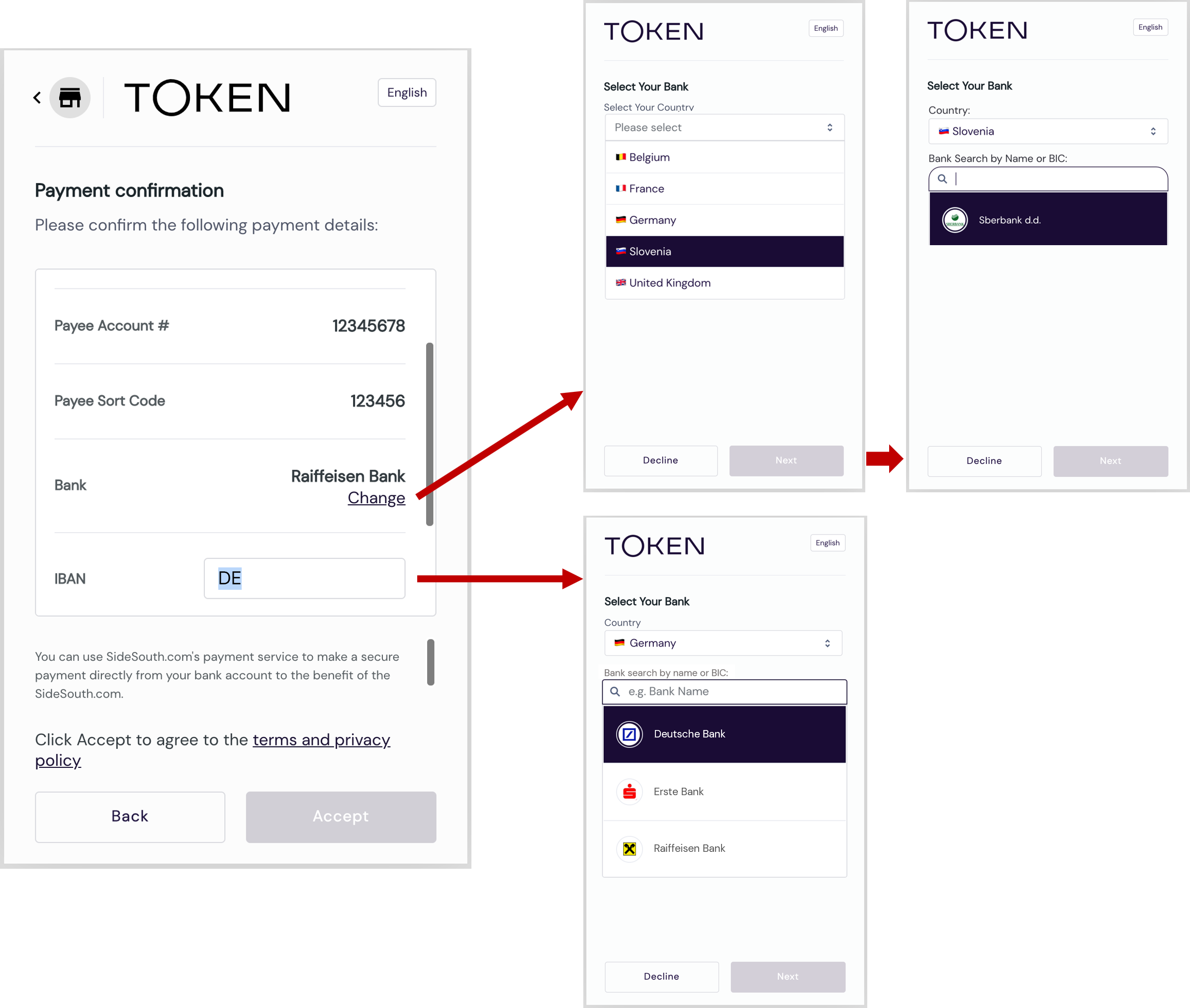
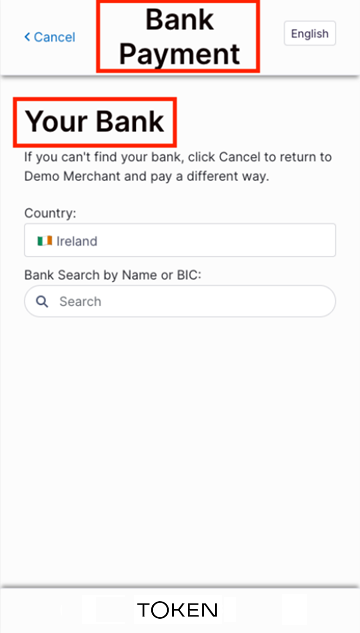
Pictured above (click to enlarge), clicking Change returns the user to the Select Your Bank screen to pick a different country and bank within that country, whereas entering a full or partial IBAN presents a bank list of the closest matches, if any.

To enable this feature from the dashboard, go to Settings > Configuration > Web App – General and turn on Enable user to change pre-selected bank on Consent page.

Callback for Hosted Pages

The following is an example callback for Payments v1 with Hosted Pages v1:

Example callback for Payments v1

{

    "request-id": "rq:3NWypnkxZRvoNH2C3AREsuZAXcmB:5zKtXEAq",

    "signature": {

        "memberId": "m:3rKtsoKaE1QUti3KCWPrcSQYvJj9:5zKtXEAq",

        "keyId": "lgf2Mn0G4kkcXd5m",

        "signature": "cUcOpIecynk3C7NCaNPP55S8mWbHIlium7toCH6NRegyLC
iStJ6wy0VU1qWM1Jvm-TJ3P13gjHQw2hYkfnGTAg"

    },

    "token-id": "tt:EBJKuLEFNi7z3NaKCXUzbYSQQkQZPFPVNXvwHaYLAJhw:HK5cCSU5TAV8nJYQ1oVM",

    "transfer-id": "t:F9C2xPa16V7SdgSbzueyhuGxE8yvhvmGZ7wCuQMxEtri:HK5cCSU5TAV8nJYQ1oVM",

    "transfer-status": "PROCESSING"

}

The request-id is always returned in the callback for Payments v1.

The payment status is transmitted in a field called transfer-status.

The transfer-id is usually present, unless you're connecting to a 2-step bank and auto-redeem is NOT active.

token-id is not always returned. For example, if there is an error and a token isn't created, there will be no token-id, as shown below.

Example callback for Payments v1 with error

{

    "error": "EXCEPTION_INITIATE_BANK_AUTH",

    "message": "INTERNAL: InitiateBankAuth failed for TokenRequest: rq:7oJUVi8s129JcYdzK1uGo2PTw81:5zKtXEAq due to INVALID_ARGUMENT: Expected username or OTP credential.",

    "request-id": "rq:7oJUVi8s129JcYdzK1uGo2PTw81:5zKtXEAq"

}

Hosted Pages status messages

Error and status reporting from the HP are consistent with the codes listed in Payment initiation status (payments v1). However, in the case of the Token.io HP, transfer/transaction status includes both the error code and the bank-transmitted message text ("NSF," canceled by user," "Account Closed," etc.).

Invalid bank ID error messages

When the HP are invoked and a Bank ID is not supported, the following error messages are sent to the TPP:

Error Messages

Message

Explanation

Selected payment scheme: ABC is not supported by XYZ Bank. The default Bank ID passed does not support the specified payment rail.
Merchant DEF has restricted the permission to access XYZ Bank. The default Bank ID passed is not configured by the merchant.
Merchant DEF is not set up to connect to XYZ Bank. The default Bank ID passed is not configured for the merchant from the platform.

Bank ID: XYZ is invalid.

The default Bank ID passed is not supported

The response payload takes the following form:

{

    "error": "access_denied",

    "message": "Selected payment scheme: ABC is not supported by XYZ Bank.",

    "requestId": "rq:44mQvLm38qyagkb7Wwi7p6T8UA9V:5zKtXEAq"

}

Error response fields defined:

  • error is the server error.

  • message explains the reason for the error.

  • requestId is generated and returned with the token payload in response to your token request submission.

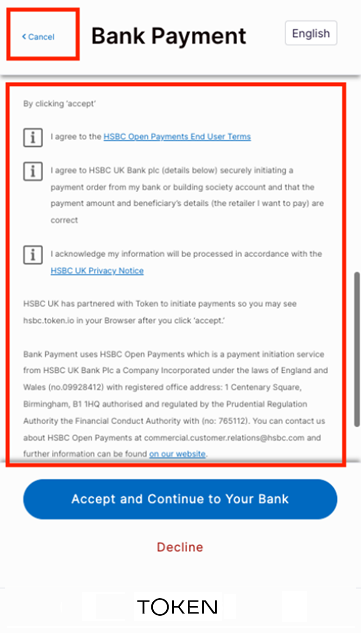
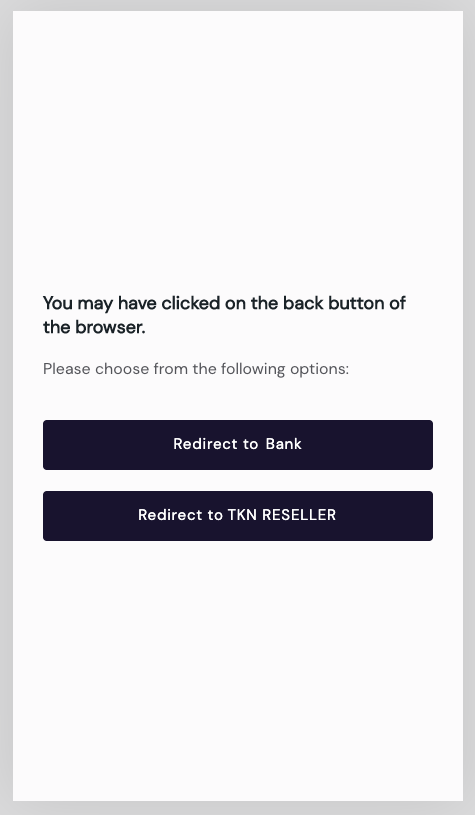
Browser back button behavior during user redirect

If the browser's back button is clicked during authentication and consent after redirect to the bank, the back button's behavior will depend on the bank flow:

  • bank-initiated payments, also known as 'one-step' payments – the user is directed to the TPP provided redirect Url.

  • TPP-initiated payments, also known as 'two-step' payments – the user is returned to the bank selection process, where they can choose to go back to the same bank or back to the TPP.

See Customer cancellation during bank selection for more information.

Support for query parameters

Query parameters are a defined set of parameters attached to the end of a URL. They are extensions of the URL that are used to help define specific content or actions based on the data being passed. To append query parameters to the end of a URL, a question mark ('? ') is added, followed by the parameter.

A number of query parameters are supported for HP redirect. These include parameters that improve the UX by eliminating unnecessary or extraneous user selection, as well as authentication and session parameters using direct references to existing and/or stored TPP requests.

Localization parameters

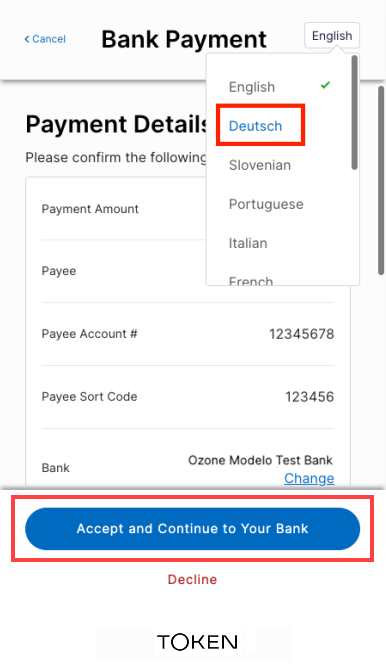
Supported query parameters for localization currently comprise language (lang) and country (country).

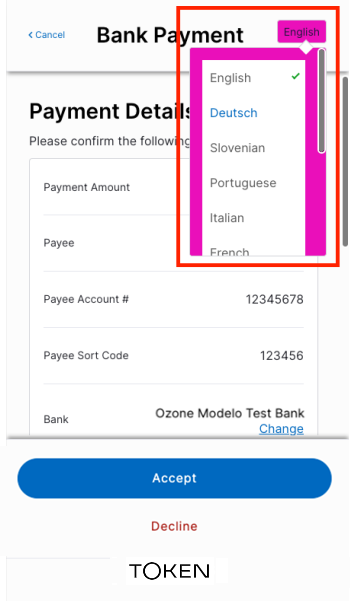
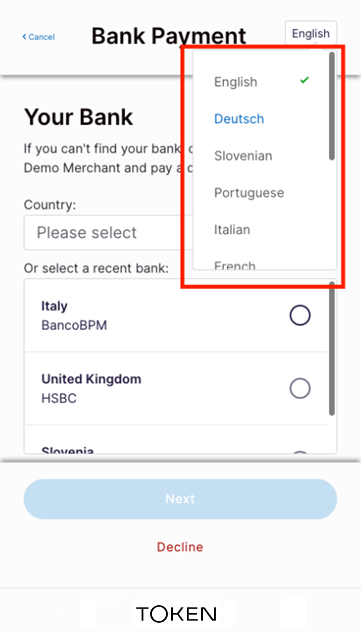
You can specify a particular language by passing its alpha-2 language code (lang=country-code) as a query parameter appended to the redirect URI. Here's an example for passing the desired ISO 639-1 language code for German (de).

https://web-app.token.io/app/request-token/rq:o9adbFqJXcaDGNDaykPvpSZFZDW:5zKtXEAq?lang=de

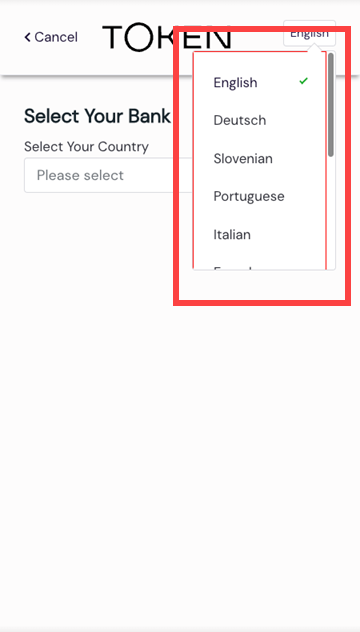
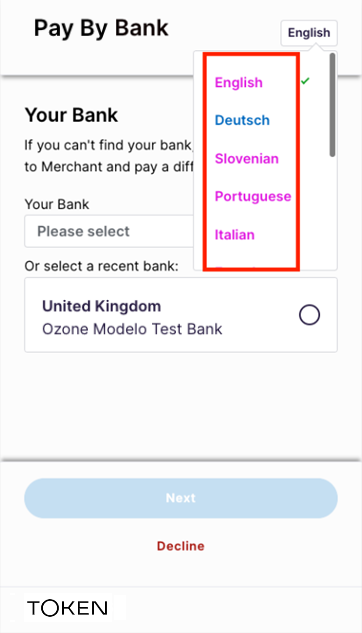
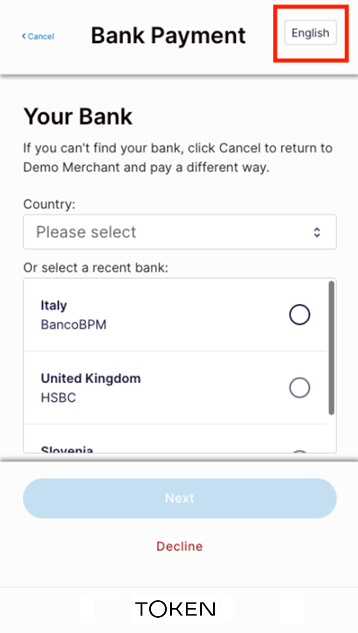
As pictured next, the user can always override the language preselect in the HP by clicking the language button in the top-right.
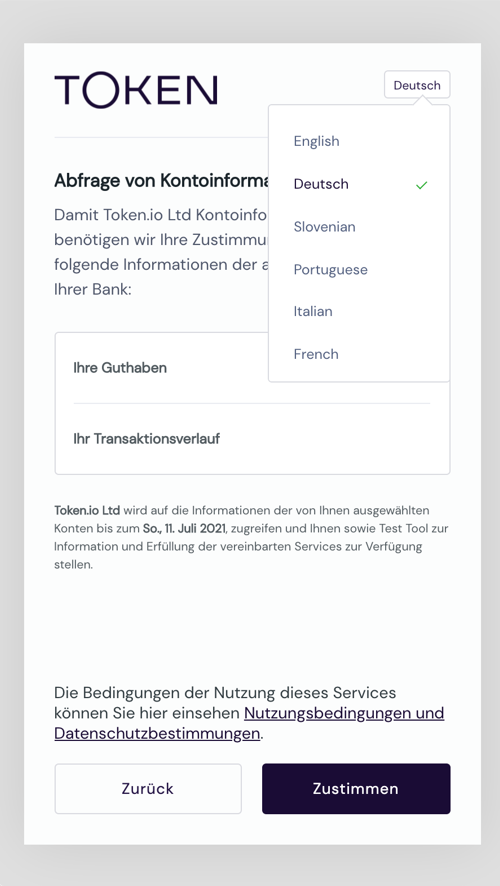
Similarly, to specify a desired country, append an ISO alpha-2 country code to the URI using the country parameter (country=country-code). Austria, for example, would be:

https://web-app.token.io/app/request-token/rq:o9adbFqJXcaDGNDaykPvpSZFZDW:5zKtXEAq?country=at

Concatenation

You can concatenate multiple query parameters for the same URL by separating them with an ampersand ('&'). For example:

https://web-app.token.io/app/request-token/rq:o9adbFqJXcaDGNDaykPvpSZFZDW:5zKtXEAq?lang=de&country=at

IBAN validation

Before the Token.io HP redirect to the bank for authorization, the user's IBAN is validated. Until IBAN validation succeeds, the HP redirect to the selected bank is paused.

Token.io's Hosted Pages (HP) v1

Token.io offers an out-of-the-box user experience for TPPs to set up and initiate payments and share Account Information Services (AIS) data through Token.io's Hosted Pages (HP).

Token.io's HP provide a standard or customized user interface that bridges TPP service initiation with the bank's authentication and consent mechanisms. HP support the redirect, decoupled and embedded authentication models. You can also white-label/customize the HP with your logo and color scheme, provided you have the correct permissions.

Create a redirect URL

When using Token.io's HP you'll need to create a redirect URL to redirect the user to the HP. The following information provides instructions on how to do this for each payment type and for AIS.

Payments v1

Create the redirect URL by appending the request id in the response to the redirect base URL, then send it to the user to request explicit consent for the payment.

https://{{BASE_URL}}/app/request-token/{{Insert request-id here}}

// example =
https://web-app.sandbox.token.io/app/request-token/rq:3RKfCA7KQEEZERLoFsAt3MoAnoP5:5zKtXEAq

You can specify a particular language by passing its language code (lang=country-code) as a query parameter, appended to the URL above, which the user can override in the HP according to personal preference. Here's an example for passing the ISO 639-1 language code for German (de):

https://{{BASE_URL}}/app/request-token/rq:o9adbFqJXcaDGNDaykPvpSZFZDW:5zKtXEAq?lang=de

Variable Recurring Payments (VRP)

Create the redirect URL by appending the request id in the response to the redirect base URL, then send it to the user to request explicit consent for the payment.

https://{{base-url}}/app/initiation?vrp-consent-id={vrp-consent-id}

// example = https://web-app.sandbox.token.io/app/initiation?vrp-consent-id=vc:G9zUH8iKcL6G5m2H37YupKjE2HX:2gFUX1NDxaJ

Specify the country for the payment. Currently VRP is only supported in the UK. The user can either choose the country in the HP, or you can pass the ISO 3166 country code (e.g., country=gb) as a query parameter appended to the URL :

https://web-app.sandbox.token.io/app/initiation?vrp-consent-id=vc:G9zUH8iKcL6G5m2H37YupKjE2HX:2gFUX1NDxaJ?country=gb

You can specify a particular language by passing its ISO 639-1 language code (e.g., lang=de) as a query parameter, appended to the URL above, which the user can override in the HP according to personal preference:

https://web-app.sandbox.token.io/app/initiation?vrp-consent-id=vc:G9zUH8iKcL6G5m2H37YupKjE2HX:2gFUX1NDxaJ?country=gb&lang=de

AIS

Create the redirect URL by appending the request id in the response to the redirect base URL, then send it to the user to request explicit consent for the AIS request.

https://{{BASE_URL}}/app/request-token/{{Insert request-id here}}

// example = https://web-app.sandbox.token.io/app/request-token/rq:3RKfCA7KQEEZERLoFsAt3MoAnoP5:5zKtXEAq

The user can either choose the country in the HP, or you can specify a particular country by passing the ISO 3166 country code (e.g., country=gb) as a query parameter appended to the URL :

https://web-app.sandbox.token.io/app/request-token/rq:3RKfCA7KQEEZERLoFsAt3MoAnoP5:5zKtXEAq?country=gb

You can also specify a particular language by passing its ISO 639-1 language code (e.g., lang=de) as a query parameter, appended to the URL, which the user can override in the HP according to personal preference:

https:///web-app.sandbox.token.io/app/request-token/rq:o9adbFqJXcaDGNDaykPvpSZFZDW:5zKtXEAq?country=gb&lang=de

Create custom Hosted Pages

In the Dashboard, go to Settings > Configuration > Web App V1: CSS to add/change your customization settings.

Under Settings you can change the following elements in Token.io's HP:

TPP logo

Configures the TPP logo for the HP.

Click the Choose file button, and select a file from the File explorer.

The selected image:

  • can have a can have a maximum size of 250 px (width) by 23 px (height); 220 x 20 px is commonly used.

  • will appear in the HP as the TPP’s logo unless Product Name has been set under the Web App - General tab.

  • can be tagged as {TPP_LOGO} throughout other HP configuration fields in the Dashboard.

Font family

Configures the global font family for the HP.

Select the font family among the listed values in the Font Family dropdown.

Styles

Configures the text and button styles for the HP.

The following styles can be configured.

Styles configuration for Hosted Pages v1

Style

Configuration

Title

A color configuration for titles displayed in the global font family.


Text

A color configuration for special text and links displayed in the global font family.


Normal 1

A color configuration for default text on the HP consent page.

Spinner

A color configuration used for the spinners in the HP.

Link

A text color configuration used for links in the HP.

Primary actions

A color configuration used for primary actions such as hover on a list item and the color of an Accept button.

Background color

A color configuration used as a background color for lists in the HP.

Primary text color

A text color configuration used for the primary text for all primary actions in the HP.

Secondary Actions

A color configuration used for secondary actions.


Secondary text color

A text color configuration which is used for secondary text, for example, the label of a secondary button.

Borders

A color configuration for borders in the HP.

Heading 2 & 3

A text color configuration used for sub title text in the HP.


Normal 2

A text color configuration which is used for consent texts.


Button Primary Focus

A color configuration which only appears in the background of a primary button when the user tries to focus on it in the HP.

Button Primary Press

A color configuration which will only appear in the background of a primary button when the user tries to click it in the HP.

Button Primary Hover

A color configuration which will only appear in the background of a primary button when the user tries to hover over it in the HP.

Button Secondary Focus

A color configuration which only appears in the background of a secondary button when the user tries to focus on it in the HP.

Button Secondary Press

A color configuration which will only appear in the background of a secondary button when the user tries to click it in the HP.

Button Secondary Hover

A color configuration which will only appear in the background of a secondary button when the user tries to hover over it in the HP.

Delete Actions

A color configuration for delete actions in the HP.

Button Delete Hover

A color configuration which will only appear in the background of an error button when the user tries to hover over it in the HP.


Button Delete Press

A color configuration which only appears in the background of an error button when the user tries to click it in the HP.

Button Delete Focus

A color configuration which only appears in the background of an error button when the user tries to focus on it in the HP.

Button Focus Color Outline

A color configuration used to configure the focus outline color for actionable items in the HP.


Font weights

Configures the weight of the fonts for text in the HP.

The following font weights can be configured.

Font weight configuration for Hosted Pages v1
Font weight Configuration
Bold

A font weight configuration generally used for Product Name and Title texts.


Semi Bold

A font weight configuration generally used for sub-title texts.


Dark

A font weight configuration used for consent details in the HP.

Medium

A font weight configuration used for consent data titles in the HP.

Regular

A font weight configuration used on list items, recent banks text, etc .


Light

A font weight configuration used in consent texts in the HP.

Font sizes

Configures the size of the fonts for text in the HP.

Font sizes configuration for Hosted Pages v1
Font weight Configuration
Heading 1

This size is used in Product Name texts as well as in the titles of HP.


Heading 2

This size is used in text inputs like IBAN and for selected items from lists.


Heading 3

This font size is used in sub titles and for consent details.


Normal 1

This font size is mainly used in consent-data-titles.


Normal 2

This font size is used in consent texts and on back button texts in the HP.


Hosted Pages flow

Token.io's HP (click to enlarge) guide the user through request initiation to consent and authentication with the bank.

As a TPP you can't change the HP flow, but you can customize the UI with your own logo and color scheme.

The Hosted Pages' Payment Confirmation page is displayed upon consent authorization.

Search for banks by name or BIC

Users can search the list of banks by entering a full or partial bank name or BIC. If a full BIC or bank name is provided and a match is found, a single result is displayed.

When multiple matches are found for a partial string, all matching results are listed for user selection.

Remember, prior to customer redirect to the HP, you can filter the search list with a GET /banks call.

See Bank Selection (v1).

Country selection

The following settings determine which countries the user can see, or select from, in Hosted Pages v1.

  • Bank selection in the dashboard - This limits the banks shown in the Hosted Pages and can be as granular as including or excluding specific banks, or controlling the countries that can be accessed.
    See WebApp - Bank selection for more details.

  • Countries array in the API- This limits the selectable countries in the Hosted Pages.
    See the countries array in the API reference for more details.

  • Country query parameter - preselects the country but allows the end user to switch countries, within the limits defined by the bank selection in the dashboard and the countries array in the API.
    See Localization parameters for more details.

Customer cancellation during bank selection

A user choosing not to proceed with user consent during bank selection can click/tap Decline.

This returns the user to where the redirect originated in the TPP's UI.

Change the bank before confirming payment details

Prior to confirming payment for a redirect to the bank for consent authorization, users can change the selected bank, either by clicking Change on the Payment confirmation screen or by entering a full or partial IBAN search string.

Pictured above (click to enlarge), clicking Change returns the user to the Select Your Bank screen to pick a different country and bank within that country, whereas entering a full or partial IBAN presents a bank list of the closest matches, if any.

To enable this feature from the dashboard, go to Settings > Configuration > Web App – General and turn on Enable user to change pre-selected bank on Consent page.

Callback for Hosted Pages

The following is an example callback for Payments v1 with Hosted Pages v1:

Example callback for Payments v1

{

    "request-id": "rq:3NWypnkxZRvoNH2C3AREsuZAXcmB:5zKtXEAq",

    "signature": {

        "memberId": "m:3rKtsoKaE1QUti3KCWPrcSQYvJj9:5zKtXEAq",

        "keyId": "lgf2Mn0G4kkcXd5m",

        "signature": "cUcOpIecynk3C7NCaNPP55S8mWbHIlium7toCH6NRegyLC
iStJ6wy0VU1qWM1Jvm-TJ3P13gjHQw2hYkfnGTAg"

    },

    "token-id": "tt:EBJKuLEFNi7z3NaKCXUzbYSQQkQZPFPVNXvwHaYLAJhw:HK5cCSU5TAV8nJYQ1oVM",

    "transfer-id": "t:F9C2xPa16V7SdgSbzueyhuGxE8yvhvmGZ7wCuQMxEtri:HK5cCSU5TAV8nJYQ1oVM",

    "transfer-status": "PROCESSING"

}

The request-id is always returned in the callback for Payments v1.

The payment status is transmitted in a field called transfer-status.

The transfer-id is usually present, unless you're connecting to a 2-step bank and auto-redeem is NOT active.

token-id is not always returned. For example, if there is an error and a token isn't created, there will be no token-id, as shown below.

Example callback for Payments v1 with error

{

    "error": "EXCEPTION_INITIATE_BANK_AUTH",

    "message": "INTERNAL: InitiateBankAuth failed for TokenRequest: rq:7oJUVi8s129JcYdzK1uGo2PTw81:5zKtXEAq due to INVALID_ARGUMENT: Expected username or OTP credential.",

    "request-id": "rq:7oJUVi8s129JcYdzK1uGo2PTw81:5zKtXEAq"

}

Hosted Pages status messages

Error and status reporting from the HP are consistent with the codes listed in Payment initiation status (payments v1). However, in the case of the Token.io HP, transfer/transaction status includes both the error code and the bank-transmitted message text ("NSF," canceled by user," "Account Closed," etc.).

Invalid bank ID error messages

When the HP are invoked and a Bank ID is not supported, the following error messages are sent to the TPP:

Error Messages

Message

Explanation

Selected payment scheme: ABC is not supported by XYZ Bank. The default Bank ID passed does not support the specified payment rail.
Merchant DEF has restricted the permission to access XYZ Bank. The default Bank ID passed is not configured by the merchant.
Merchant DEF is not set up to connect to XYZ Bank. The default Bank ID passed is not configured for the merchant from the platform.

Bank ID: XYZ is invalid.

The default Bank ID passed is not supported

The response payload takes the following form:

{

    "error": "access_denied",

    "message": "Selected payment scheme: ABC is not supported by XYZ Bank.",

    "requestId": "rq:44mQvLm38qyagkb7Wwi7p6T8UA9V:5zKtXEAq"

}

Error response fields defined:

  • error is the server error.

  • message explains the reason for the error.

  • requestId is generated and returned with the token payload in response to your token request submission.

Browser back button behavior during user redirect

If the browser's back button is clicked during authentication and consent after redirect to the bank, the back button's behavior will depend on the bank flow:

  • bank-initiated payments, also known as 'one-step' payments – the user is directed to the TPP provided redirect Url.

  • TPP-initiated payments, also known as 'two-step' payments – the user is returned to the bank selection process, where they can choose to go back to the same bank or back to the TPP.

See Customer cancellation during bank selection for more information.

Support for query parameters

Query parameters are a defined set of parameters attached to the end of a URL. They are extensions of the URL that are used to help define specific content or actions based on the data being passed. To append query parameters to the end of a URL, a question mark ('? ') is added, followed by the parameter.

A number of query parameters are supported for HP redirect. These include parameters that improve the UX by eliminating unnecessary or extraneous user selection, as well as authentication and session parameters using direct references to existing and/or stored TPP requests.

Localization parameters

Supported query parameters for localization currently comprise language (lang) and country (country).

You can specify a particular language by passing its alpha-2 language code (lang=country-code) as a query parameter appended to the redirect URI. Here's an example for passing the desired ISO 639-1 language code for German (de).

https://web-app.token.io/app/request-token/rq:o9adbFqJXcaDGNDaykPvpSZFZDW:5zKtXEAq?lang=de

As pictured next, the user can always override the language preselect in the HP by clicking the language button in the top-right.

Similarly, to specify a desired country, append an ISO alpha-2 country code to the URI using the country parameter (country=country-code). Austria, for example, would be:

https://web-app.token.io/app/request-token/rq:o9adbFqJXcaDGNDaykPvpSZFZDW:5zKtXEAq?country=at

Concatenation

You can concatenate multiple query parameters for the same URL by separating them with an ampersand ('&'). For example:

https://web-app.token.io/app/request-token/rq:o9adbFqJXcaDGNDaykPvpSZFZDW:5zKtXEAq?lang=de&country=at

IBAN validation

Before the Token.io HP redirect to the bank for authorization, the user's IBAN is validated. Until IBAN validation succeeds, the HP redirect to the selected bank is paused.

Token.io's Hosted Pages (HP) v1

Token.io offers an out-of-the-box user experience for TPPs to set up and initiate payments and share Account Information Services (AIS) data through Token.io's Hosted Pages (HP).

Token.io's HP provide a standard or customized user interface that bridges TPP service initiation with the bank's authentication and consent mechanisms. HP support the redirect, decoupled and embedded authentication models. You can also white-label/customize the HP with your logo and color scheme, provided you have the correct permissions.

Create a redirect URL

When using Token.io's HP you'll need to create a redirect URL to redirect the user to the HP. The following information provides instructions on how to do this for each payment type and for AIS.

Payments v1

Create the redirect URL by appending the request id in the response to the redirect base URL, then send it to the user to request explicit consent for the payment.

https://{{BASE_URL}}/app/request-token/{{Insert request-id here}}

// example =
https://web-app.sandbox.token.io/app/request-token/rq:3RKfCA7KQEEZERLoFsAt3MoAnoP5:5zKtXEAq

You can specify a particular language by passing its language code (lang=country-code) as a query parameter, appended to the URL above, which the user can override in the HP according to personal preference. Here's an example for passing the ISO 639-1 language code for German (de):

https://{{BASE_URL}}/app/request-token/rq:o9adbFqJXcaDGNDaykPvpSZFZDW:5zKtXEAq?lang=de

Variable Recurring Payments (VRP)

Create the redirect URL by appending the request id in the response to the redirect base URL, then send it to the user to request explicit consent for the payment.

https://{{base-url}}/app/initiation?vrp-consent-id={vrp-consent-id}

// example = https://web-app.sandbox.token.io/app/initiation?vrp-consent-id=vc:G9zUH8iKcL6G5m2H37YupKjE2HX:2gFUX1NDxaJ

Specify the country for the payment. Currently VRP is only supported in the UK. The user can either choose the country in the HP, or you can pass the ISO 3166 country code (e.g., country=gb) as a query parameter appended to the URL :

https://web-app.sandbox.token.io/app/initiation?vrp-consent-id=vc:G9zUH8iKcL6G5m2H37YupKjE2HX:2gFUX1NDxaJ?country=gb

You can specify a particular language by passing its ISO 639-1 language code (e.g., lang=de) as a query parameter, appended to the URL above, which the user can override in the HP according to personal preference:

https://web-app.sandbox.token.io/app/initiation?vrp-consent-id=vc:G9zUH8iKcL6G5m2H37YupKjE2HX:2gFUX1NDxaJ?country=gb&lang=de

AIS

Create the redirect URL by appending the request id in the response to the redirect base URL, then send it to the user to request explicit consent for the AIS request.

https://{{BASE_URL}}/app/request-token/{{Insert request-id here}}

// example = https://web-app.sandbox.token.io/app/request-token/rq:3RKfCA7KQEEZERLoFsAt3MoAnoP5:5zKtXEAq

The user can either choose the country in the HP, or you can specify a particular country by passing the ISO 3166 country code (e.g., country=gb) as a query parameter appended to the URL :

https://web-app.sandbox.token.io/app/request-token/rq:3RKfCA7KQEEZERLoFsAt3MoAnoP5:5zKtXEAq?country=gb

You can also specify a particular language by passing its ISO 639-1 language code (e.g., lang=de) as a query parameter, appended to the URL, which the user can override in the HP according to personal preference:

https:///web-app.sandbox.token.io/app/request-token/rq:o9adbFqJXcaDGNDaykPvpSZFZDW:5zKtXEAq?country=gb&lang=de

Create custom Hosted Pages

In the Dashboard, go to Settings > Configuration > Web App V1: CSS to add/change your customization settings.

Under Settings you can change the following elements in Token.io's HP:

TPP logo

Configures the TPP logo for the HP.

Click the Choose file button, and select a file from the File explorer.

The selected image:

  • can have a can have a maximum size of 250 px (width) by 23 px (height); 220 x 20 px is commonly used.

  • will appear in the HP as the TPP’s logo unless Product Name has been set under the Web App - General tab.

  • can be tagged as {TPP_LOGO} throughout other HP configuration fields in the Dashboard.

Font family

Configures the global font family for the HP.

Select the font family among the listed values in the Font Family dropdown.

Styles

Configures the text and button styles for the HP.

The following styles can be configured.

Styles configuration for Hosted Pages v1

Style

Configuration

Title

A color configuration for titles displayed in the global font family.


Text

A color configuration for special text and links displayed in the global font family.


Normal 1

A color configuration for default text on the HP consent page.

Spinner

A color configuration used for the spinners in the HP.

Link

A text color configuration used for links in the HP.

Primary actions

A color configuration used for primary actions such as hover on a list item and the color of an Accept button.

Background color

A color configuration used as a background color for lists in the HP.

Primary text color

A text color configuration used for the primary text for all primary actions in the HP.

Secondary Actions

A color configuration used for secondary actions.


Secondary text color

A text color configuration which is used for secondary text, for example, the label of a secondary button.

Borders

A color configuration for borders in the HP.

Heading 2 & 3

A text color configuration used for sub title text in the HP.


Normal 2

A text color configuration which is used for consent texts.


Button Primary Focus

A color configuration which only appears in the background of a primary button when the user tries to focus on it in the HP.

Button Primary Press

A color configuration which will only appear in the background of a primary button when the user tries to click it in the HP.

Button Primary Hover

A color configuration which will only appear in the background of a primary button when the user tries to hover over it in the HP.

Button Secondary Focus

A color configuration which only appears in the background of a secondary button when the user tries to focus on it in the HP.

Button Secondary Press

A color configuration which will only appear in the background of a secondary button when the user tries to click it in the HP.

Button Secondary Hover

A color configuration which will only appear in the background of a secondary button when the user tries to hover over it in the HP.

Delete Actions

A color configuration for delete actions in the HP.

Button Delete Hover

A color configuration which will only appear in the background of an error button when the user tries to hover over it in the HP.


Button Delete Press

A color configuration which only appears in the background of an error button when the user tries to click it in the HP.

Button Delete Focus

A color configuration which only appears in the background of an error button when the user tries to focus on it in the HP.

Button Focus Color Outline

A color configuration used to configure the focus outline color for actionable items in the HP.


Font weights

Configures the weight of the fonts for text in the HP.

The following font weights can be configured.

Font weight configuration for Hosted Pages v1
Font weight Configuration
Bold

A font weight configuration generally used for Product Name and Title texts.


Semi Bold

A font weight configuration generally used for sub-title texts.


Dark

A font weight configuration used for consent details in the HP.

Medium

A font weight configuration used for consent data titles in the HP.

Regular

A font weight configuration used on list items, recent banks text, etc .


Light

A font weight configuration used in consent texts in the HP.

Font sizes

Configures the size of the fonts for text in the HP.

Font sizes configuration for Hosted Pages v1
Font weight Configuration
Heading 1

This size is used in Product Name texts as well as in the titles of HP.


Heading 2

This size is used in text inputs like IBAN and for selected items from lists.


Heading 3

This font size is used in sub titles and for consent details.


Normal 1

This font size is mainly used in consent-data-titles.


Normal 2

This font size is used in consent texts and on back button texts in the HP.


Hosted Pages flow

Token.io's HP (click to enlarge) guide the user through request initiation to consent and authentication with the bank.

As a TPP you can't change the HP flow, but you can customize the UI with your own logo and color scheme.

The Hosted Pages' Payment Confirmation page is displayed upon consent authorization.

Search for banks by name or BIC

Users can search the list of banks by entering a full or partial bank name or BIC. If a full BIC or bank name is provided and a match is found, a single result is displayed.

When multiple matches are found for a partial string, all matching results are listed for user selection.

Remember, prior to customer redirect to the HP, you can filter the search list with a GET /banks call.

See Bank Selection (v1).

Country selection

The following settings determine which countries the user can see, or select from, in Hosted Pages v1.

  • Bank selection in the dashboard - This limits the banks shown in the Hosted Pages and can be as granular as including or excluding specific banks, or controlling the countries that can be accessed.
    See WebApp - Bank selection for more details.

  • Countries array in the API- This limits the selectable countries in the Hosted Pages.
    See the countries array in the API reference for more details.

  • Country query parameter - preselects the country but allows the end user to switch countries, within the limits defined by the bank selection in the dashboard and the countries array in the API.
    See Localization parameters for more details.

Customer cancellation during bank selection

A user choosing not to proceed with user consent during bank selection can click/tap Decline.

This returns the user to where the redirect originated in the TPP's UI.

Change the bank before confirming payment details

Prior to confirming payment for a redirect to the bank for consent authorization, users can change the selected bank, either by clicking Change on the Payment confirmation screen or by entering a full or partial IBAN search string.

Pictured above (click to enlarge), clicking Change returns the user to the Select Your Bank screen to pick a different country and bank within that country, whereas entering a full or partial IBAN presents a bank list of the closest matches, if any.

To enable this feature from the dashboard, go to Settings > Configuration > Web App – General and turn on Enable user to change pre-selected bank on Consent page.

Callback for Hosted Pages

The following is an example callback for Payments v1 with Hosted Pages v1:

Example callback for Payments v1

{

    "request-id": "rq:3NWypnkxZRvoNH2C3AREsuZAXcmB:5zKtXEAq",

    "signature": {

        "memberId": "m:3rKtsoKaE1QUti3KCWPrcSQYvJj9:5zKtXEAq",

        "keyId": "lgf2Mn0G4kkcXd5m",

        "signature": "cUcOpIecynk3C7NCaNPP55S8mWbHIlium7toCH6NRegyLC
iStJ6wy0VU1qWM1Jvm-TJ3P13gjHQw2hYkfnGTAg"

    },

    "token-id": "tt:EBJKuLEFNi7z3NaKCXUzbYSQQkQZPFPVNXvwHaYLAJhw:HK5cCSU5TAV8nJYQ1oVM",

    "transfer-id": "t:F9C2xPa16V7SdgSbzueyhuGxE8yvhvmGZ7wCuQMxEtri:HK5cCSU5TAV8nJYQ1oVM",

    "transfer-status": "PROCESSING"

}

The request-id is always returned in the callback for Payments v1.

The payment status is transmitted in a field called transfer-status.

The transfer-id is usually present, unless you're connecting to a 2-step bank and auto-redeem is NOT active.

token-id is not always returned. For example, if there is an error and a token isn't created, there will be no token-id, as shown below.

Example callback for Payments v1 with error

{

    "error": "EXCEPTION_INITIATE_BANK_AUTH",

    "message": "INTERNAL: InitiateBankAuth failed for TokenRequest: rq:7oJUVi8s129JcYdzK1uGo2PTw81:5zKtXEAq due to INVALID_ARGUMENT: Expected username or OTP credential.",

    "request-id": "rq:7oJUVi8s129JcYdzK1uGo2PTw81:5zKtXEAq"

}

Hosted Pages status messages

Error and status reporting from the HP are consistent with the codes listed in Payment initiation status (payments v1). However, in the case of the Token.io HP, transfer/transaction status includes both the error code and the bank-transmitted message text ("NSF," canceled by user," "Account Closed," etc.).

Invalid bank ID error messages

When the HP are invoked and a Bank ID is not supported, the following error messages are sent to the TPP:

Error Messages

Message

Explanation

Selected payment scheme: ABC is not supported by XYZ Bank. The default Bank ID passed does not support the specified payment rail.
Merchant DEF has restricted the permission to access XYZ Bank. The default Bank ID passed is not configured by the merchant.
Merchant DEF is not set up to connect to XYZ Bank. The default Bank ID passed is not configured for the merchant from the platform.

Bank ID: XYZ is invalid.

The default Bank ID passed is not supported

The response payload takes the following form:

{

    "error": "access_denied",

    "message": "Selected payment scheme: ABC is not supported by XYZ Bank.",

    "requestId": "rq:44mQvLm38qyagkb7Wwi7p6T8UA9V:5zKtXEAq"

}

Error response fields defined:

  • error is the server error.

  • message explains the reason for the error.

  • requestId is generated and returned with the token payload in response to your token request submission.

Browser back button behavior during user redirect

If the browser's back button is clicked during authentication and consent after redirect to the bank, the back button's behavior will depend on the bank flow:

  • bank-initiated payments, also known as 'one-step' payments – the user is directed to the TPP provided redirect Url.

  • TPP-initiated payments, also known as 'two-step' payments – the user is returned to the bank selection process, where they can choose to go back to the same bank or back to the TPP.

See Customer cancellation during bank selection for more information.

Support for query parameters

Query parameters are a defined set of parameters attached to the end of a URL. They are extensions of the URL that are used to help define specific content or actions based on the data being passed. To append query parameters to the end of a URL, a question mark ('? ') is added, followed by the parameter.

A number of query parameters are supported for HP redirect. These include parameters that improve the UX by eliminating unnecessary or extraneous user selection, as well as authentication and session parameters using direct references to existing and/or stored TPP requests.

Localization parameters

Supported query parameters for localization currently comprise language (lang) and country (country).

You can specify a particular language by passing its alpha-2 language code (lang=country-code) as a query parameter appended to the redirect URI. Here's an example for passing the desired ISO 639-1 language code for German (de).

https://web-app.token.io/app/request-token/rq:o9adbFqJXcaDGNDaykPvpSZFZDW:5zKtXEAq?lang=de

As pictured next, the user can always override the language preselect in the HP by clicking the language button in the top-right.

Similarly, to specify a desired country, append an ISO alpha-2 country code to the URI using the country parameter (country=country-code). Austria, for example, would be:

https://web-app.token.io/app/request-token/rq:o9adbFqJXcaDGNDaykPvpSZFZDW:5zKtXEAq?country=at

Concatenation

You can concatenate multiple query parameters for the same URL by separating them with an ampersand ('&'). For example:

https://web-app.token.io/app/request-token/rq:o9adbFqJXcaDGNDaykPvpSZFZDW:5zKtXEAq?lang=de&country=at

IBAN validation

Before the Token.io HP redirect to the bank for authorization, the user's IBAN is validated. Until IBAN validation succeeds, the HP redirect to the selected bank is paused.


If you have any feedback about the developer documentation, please contact devdocs@token.io

© 2025 TOKEN, INC.     ALL RIGHTS RESERVED.